My Home Assistant Wall Tablets, Part 2: Voice, Music and a Smarter Intercom
Table of Contents
The plain HTML wall tablets from part 1 learned to listen: the kids' tablets and the family room remote are now voice assistants, have a Music Assistant page, bring up the right page on their own, and update themselves after a change. Part 2 of 3 in Home Assistant Wall Tablets in Plain HTML. A few days ago I wrote about rewriting my Home Assistant dashboards in plain HTML: small pages on the wall tablets around the house, each one talking to Home Assistant over a single websocket. That post ended with the tablets doing what the old Lovelace dashboards did, just faster. Since then they've picked up a lot more. The kids' tablets and the family room remote are now voice assistants. They have a music page. The intercom got smarter about which page you land on. And the tablets update themselves after I change something, so nobody has to go around the house reloading them. Same deal as last time: Claude wrote the code, I tried it on the real tablets and reported what was weird. And every screenshot here is the real dashboard code running against a fake Home Assistant, with made-up data. None of these bands exist. Here's a kid's room now. The only visible change is the new Music button in the corner: Most rooms in my house already have a voice satellite: Home Assistant Voice PE boxes, and a Linux box in the attic. The kids' rooms didn't, and the family room had a Linux Voice Assistant running in a container that was never very reliable. But each of those rooms has a tablet on the wall, with a microphone and a speaker, that is on all day anyway. All the voice work on these tablets is done by Voice Satellite, a custom integration by jxlarrea. It's in the default HACS list (search for "Voice Satellite"), and I'm running version 2026.9.13. It needs Home Assistant 2025.6.1 or newer and an Assist pipeline with speech-to-text, a conversation agent and text-to-speech, the same as any other voice satellite. It turns any browser into a real Home Assistant voice satellite. Each tablet you add (Settings > Devices & services > Add Integration > Voice Satellite) becomes an If you use regular Lovelace dashboards, that's the whole setup: install it, add a device per tablet, pick that device in the Voice Satellite sidebar panel on the tablet, and you're done. On Android, the author also has a free companion kiosk app, Kiosk Satellite, that can keep listening with the screen off. I first used Voice Satellite exactly that way: a Lovelace dashboard in Fully Kiosk Browser, the app that runs all my wall tablets. On my older tablets, Lovelace plus the voice assistant was just too slow. Kiosk Satellite might have been another way to go, but I already had faster pages. The catch for me is that Voice Satellite expects to run inside Home Assistant's own frontend, and my pages aren't Home Assistant's frontend. That was the whole point of part 1. So Claude did something I wouldn't have thought of. The page loads the integration's own script from Home Assistant, completely unchanged, and gives it what it's looking for: a stand-in Here's what it looks like when someone talks to it. The dashboard blurs out behind the conversation, and the colored bar at the bottom moves while the tablet listens and answers: On the page itself it's one line: Like the rest of the dashboard, the tablet only hears about the entities it needs: the satellite and the few other entities on the same device. Not the whole house. Each tablet's satellite is assigned to its room in Home Assistant, so "turn off the lights" on a kid's tablet means that kid's lights. Asking for music in a kid's room plays it on their tablet. Everything else works like any other satellite in the house: it uses the same Assist pipeline, which tries Home Assistant's local commands first and only asks the LLM about things they don't understand. The family room's flaky Linux Voice Assistant is gone. The StarView next to the TV took its place. The tablets were already doing other things, so voice had to fit in without breaking any of them: Swipe twice (or tap that new Music button) and you get page three: Music Assistant, playing on that tablet. It's what you'd expect: what's playing with the usual controls, the library by playlists, artists, albums and radio, and a search box. It all goes through Home Assistant's own Music Assistant actions over the page's websocket, so there's nothing extra to log in to. Putting the card on a page looks like every other card: That Tapping an artist opens their albums and songs, with a Play all button: A few small things made it feel a lot better for the kids: When music starts on a tablet, by voice, from the page, or from the Music Assistant app, the tablet switches to the music page on its own. If the screensaver is up, it changes the page behind it without waking the screen. It never does this during an intercom call. This one took a second try. The wake word beep and the spoken answers play through the same player as the music, so at first, every voice command looked like music starting, and the music page popped up after "what's the weather?" Now "music" means something with a title is playing and the voice assistant isn't busy. The family room is a little different. Its music page plays on the Family Room Speaker, which is a Google speaker. People still ask Google to play things there, or cast to it from their phones, and I didn't want the tablet to just show "Nothing playing" while music was clearly playing. So the card follows the speaker's own player as well. When Google is playing, the card shows what Google is playing, and the buttons control it. Pick something on the tablet and the speaker goes back to Music Assistant. (Music Assistant's own music shows up on the speaker with a recognizable stream address, which is how the card tells the two apart.) The intercom from part 1 still works the same way, but it's better about where you end up: The "which page should the screen land on" rule is short enough to show: In part 1 I bragged about the version stamps on every script ( Now every page checks for itself. Every 30 minutes, and every time it reconnects to Home Assistant, it downloads its own address past the cache and compares the version stamp: It only reloads when it's safe. Nobody can have touched the screen for 2 minutes, and nothing can be going on: no intercom call, no voice answer, no music playing on that tablet. If a reload comes back with the same old page anyway, it remembers that and doesn't loop. So now when Claude changes something, I deploy it, and within half an hour or so every tablet in the house is running the new version without anyone touching them. (Each tablet did need one last reload by hand to pick up this feature itself.) Testing all of this meant constantly opening the tablet pages on my computer, which (as mentioned twice now) tends to steal calls and voice from the real tablets. So there's now one more page that isn't for a tablet at all: Wall Tablets, in the Home Assistant sidebar. A few details make it pleasant to use: The fake Home Assistant from part 1 got a bit bigger for this post. It now fakes Music Assistant too: a library, search results, an artist's albums and songs. Every band, album and playlist is made up, and the covers are random shapes. The kid's room is just "Kid's Room." The voice assistant was the hard one. Its on-screen display belongs to the integration, and a real one needs a microphone and a real Assist pipeline. So the screenshot above is the integration's own stylesheet and layout, drawn over the fake kid's room with a made-up request and Home Assistant's usual answer, rather than a recording of a live conversation. How it works got a diagram. Most of this was one long day of back and forth. Claude would build something, test it against the fake Home Assistant, and hand it over. Then I'd deploy it and live with it for a bit. The bugs that mattered were the ones only a real house finds: the music page popping up every time someone asked about the weather, the tablets quietly running last week's page, a tap on a song that looked like it did nothing because Music Assistant was taking its time starting it. The kids can now ask their tablets to play music and turn off their lights, and the family room remote answers questions. Nobody had to learn anything new to get there, which was the one rule I gave Claude in part 1, and it still holds. If you're running Voice Satellite or Music Assistant and want the details on either card, let me know in the comments. Thanks for reading. Next in this series: My Home Assistant Wall Tablets, Part 3: Alerts, Swipes and a Thermostat That Knows About the Attic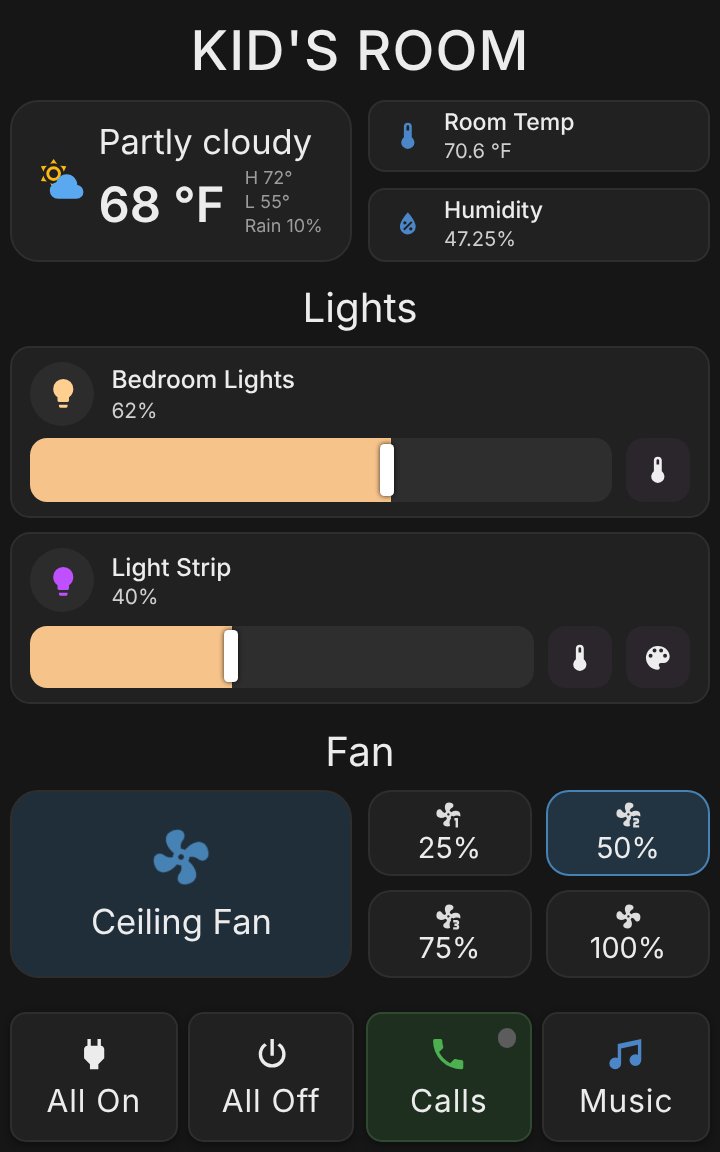 Same page as in part 1, plus a Music button. The rest is in what the tablet can do now.
 The Tablets Are Voice Assistants Now
The Integration: Voice Satellite
assist_satellite device, just like a Voice PE box, with its own media player and settings entities. From there you get:assist_satellite.announce and start_conversation on a tablet like on any other satellite.<home-assistant> element with a hass object on it, built on top of the page's existing websocket. The integration has no idea it isn't running in Home Assistant.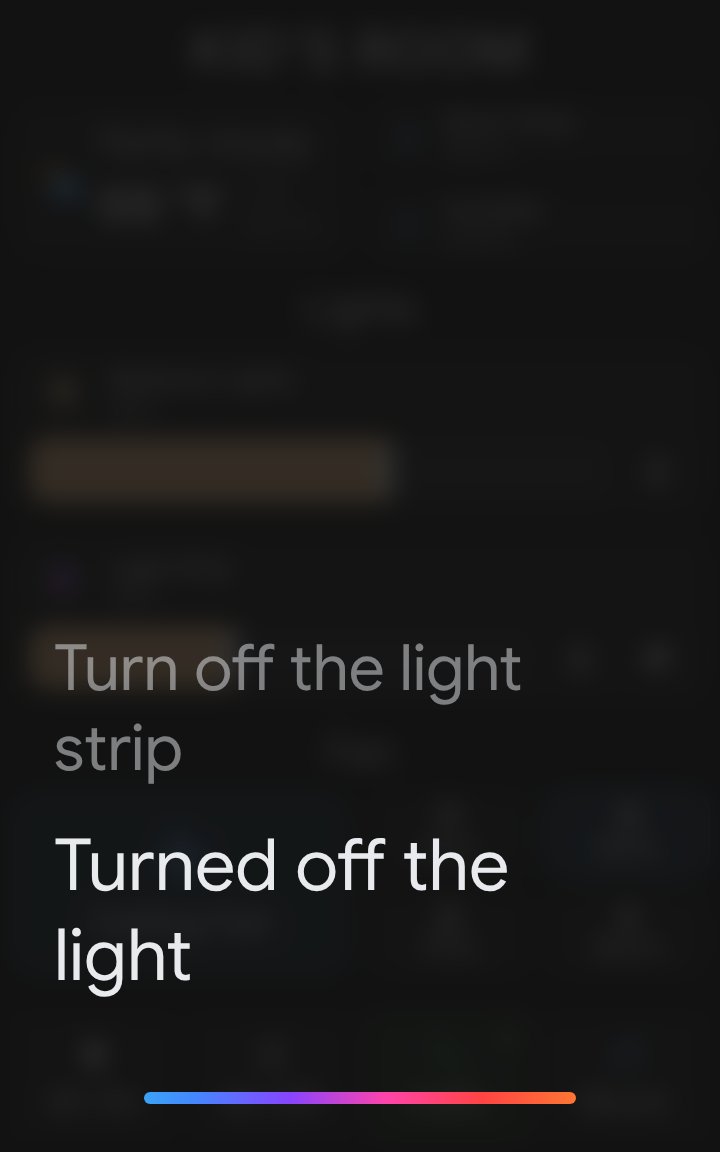 The Voice Satellite integration's default look, over a kid's room page. The tablet's microphone hears the wake word; the rest happens in Home Assistant.
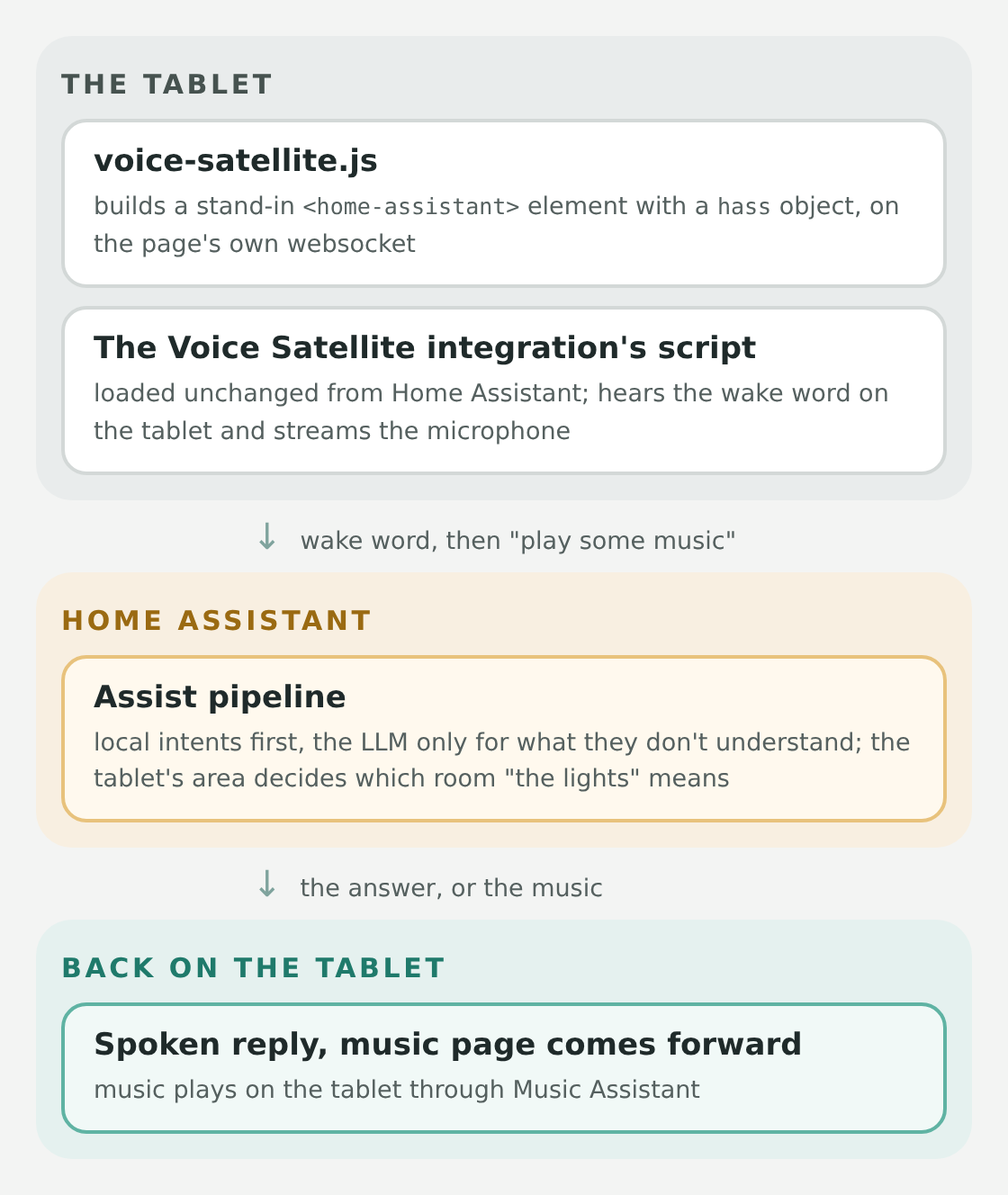 The integration's script doesn't change at all. It just finds what it expects on the page.
Dash.voiceSatellite({ entity: 'assist_satellite.kid_tablet' }); Making It Get Along With Everything Else
?voice=off turns it off on a PC. A Music Page
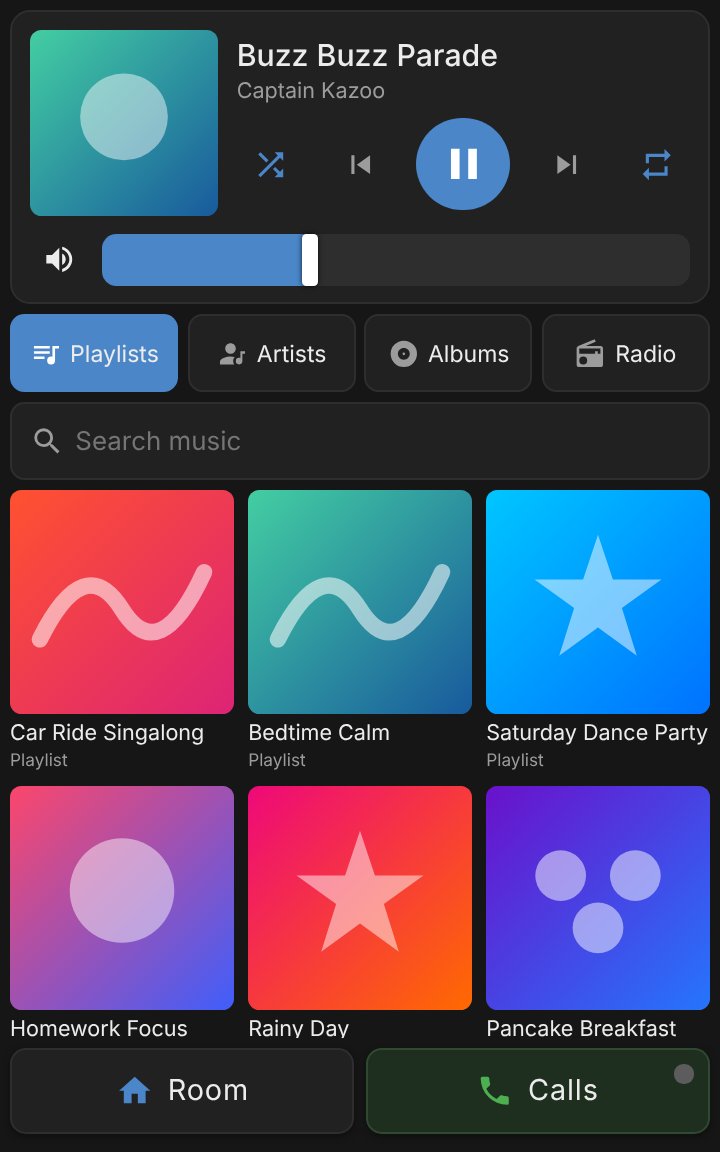 What's playing on top, the library underneath. Tap anything and it plays. (All the music is invented, and the covers are just generated shapes.)
Dash.card('#music', 'music', {
entity: 'media_player.kid_tablet_music', // Music Assistant's player for this tablet
imageHost: { 'http://192.168.1.20:8095': 'https://music.example.com' },
});imageHost line is there because of a classic. Music Assistant serves its cover art over plain http, and a page loaded over https isn't allowed to show http images. So every cover was a blank square. The fix is to load the covers through Music Assistant's https address instead. A cover that still can't load falls back to an icon.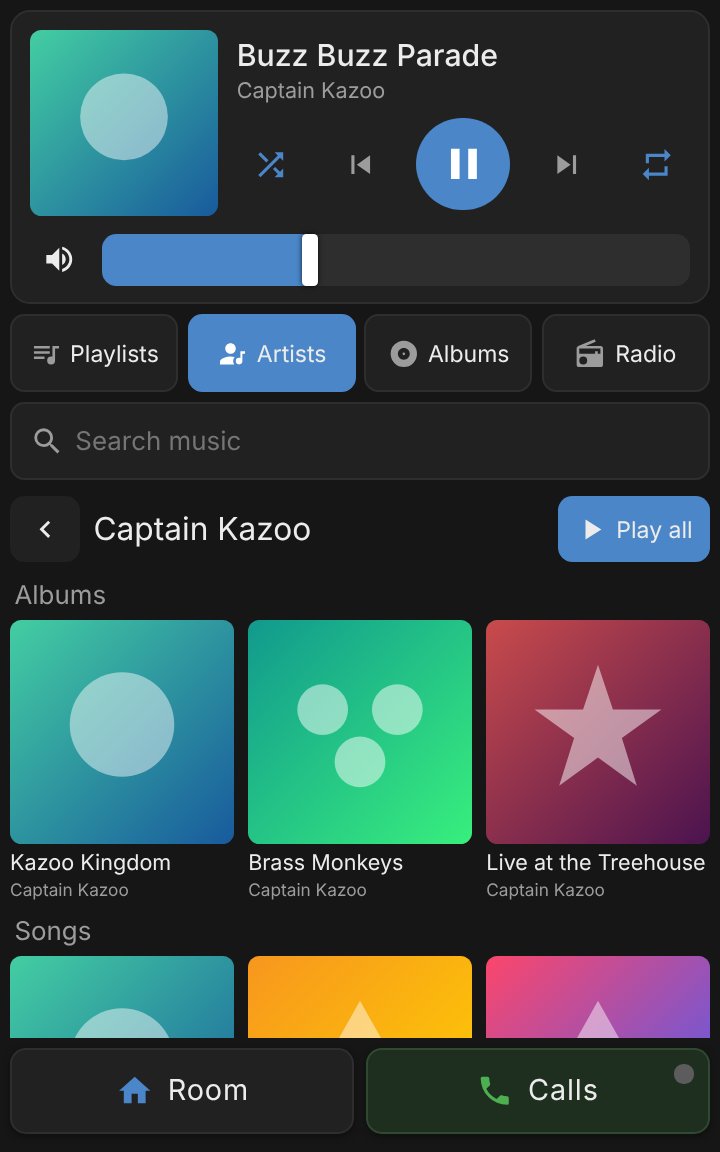 Originally, tapping an artist tried to play the artist directly, which silently did nothing for some music sources. Now Play all queues the songs it found.
 The Music Page Comes Up By Itself
The Family Room Follows Google Too
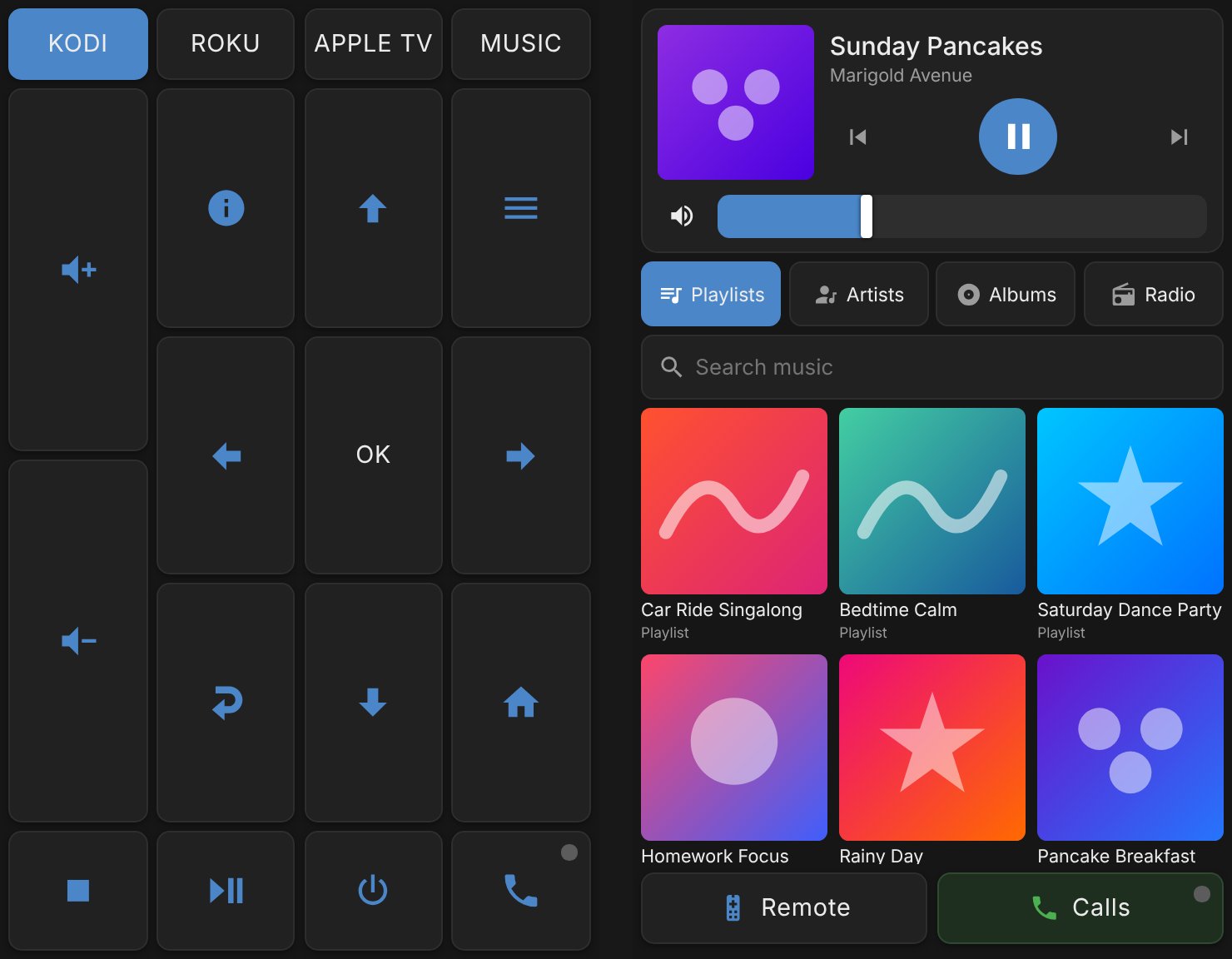 The StarView remote got a Music button next to the TV sources. On the right, a song Google is playing on the speaker, with working controls.
 The Intercom Got Smarter
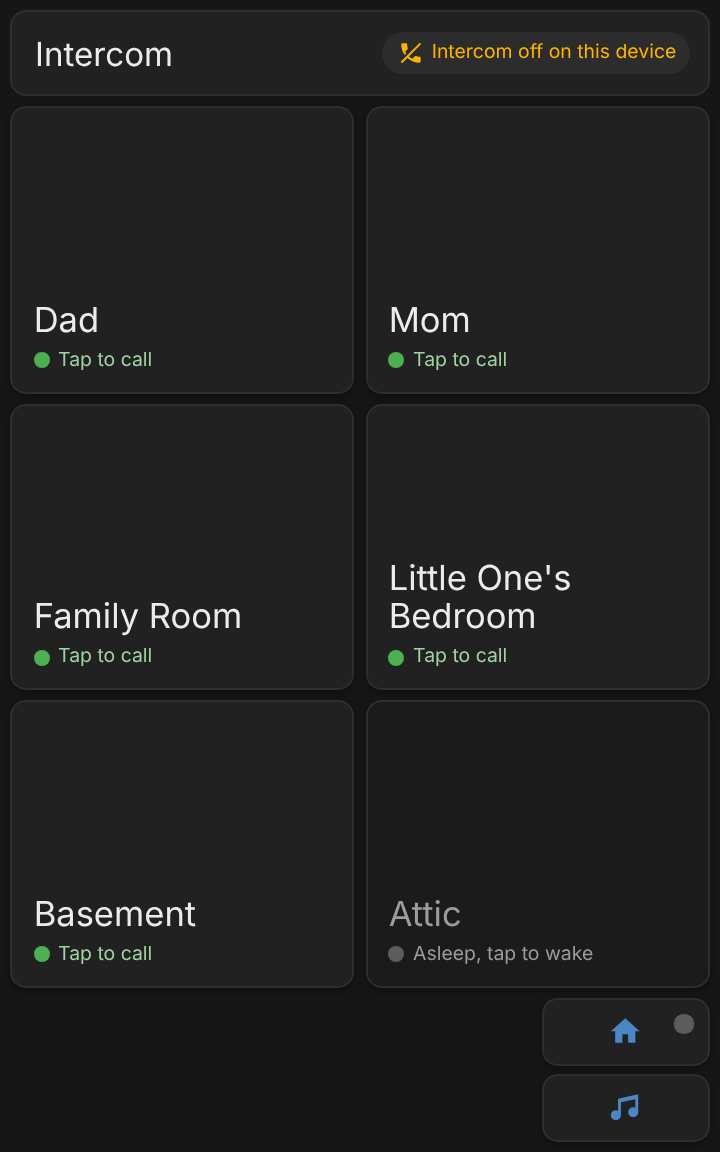 The intercom page on a kid's tablet. The room you're in isn't listed. The attic's intercom is asleep, so it shows "tap to wake."
const homePage = () => document.body.classList.contains('ic-live') ? 1 // a call is up: the intercom
: music.on() ? 2 // music is playing: music
: 0; // otherwise: the room
Dash.screensaver({ /* ... */ onWake: () => Dash.pager.go(homePage()) }); The Tablets Update Themselves
core.js?v=20261002-3), which get around Home Assistant telling browsers to cache files from /local/ for 31 days. That worked for the scripts. What we'd missed is that the page itself is cached for 31 days too, and the page is where the version stamps are written. So after a change, a tablet could happily keep running the old page with the old stamps. The only fix was walking over to the tablet and reloading it.fetch(location.pathname + location.search, { cache: 'reload' })
.then(r => r.text())
.then(html => {
const m = /lib\/core\.js\?v=([^"'&\s>]+)/.exec(html);
if (m && m[1] !== MY_STAMP) reloadWhenIdle(); // there's a newer version of this page
}); Every Tablet in the Home Assistant Sidebar
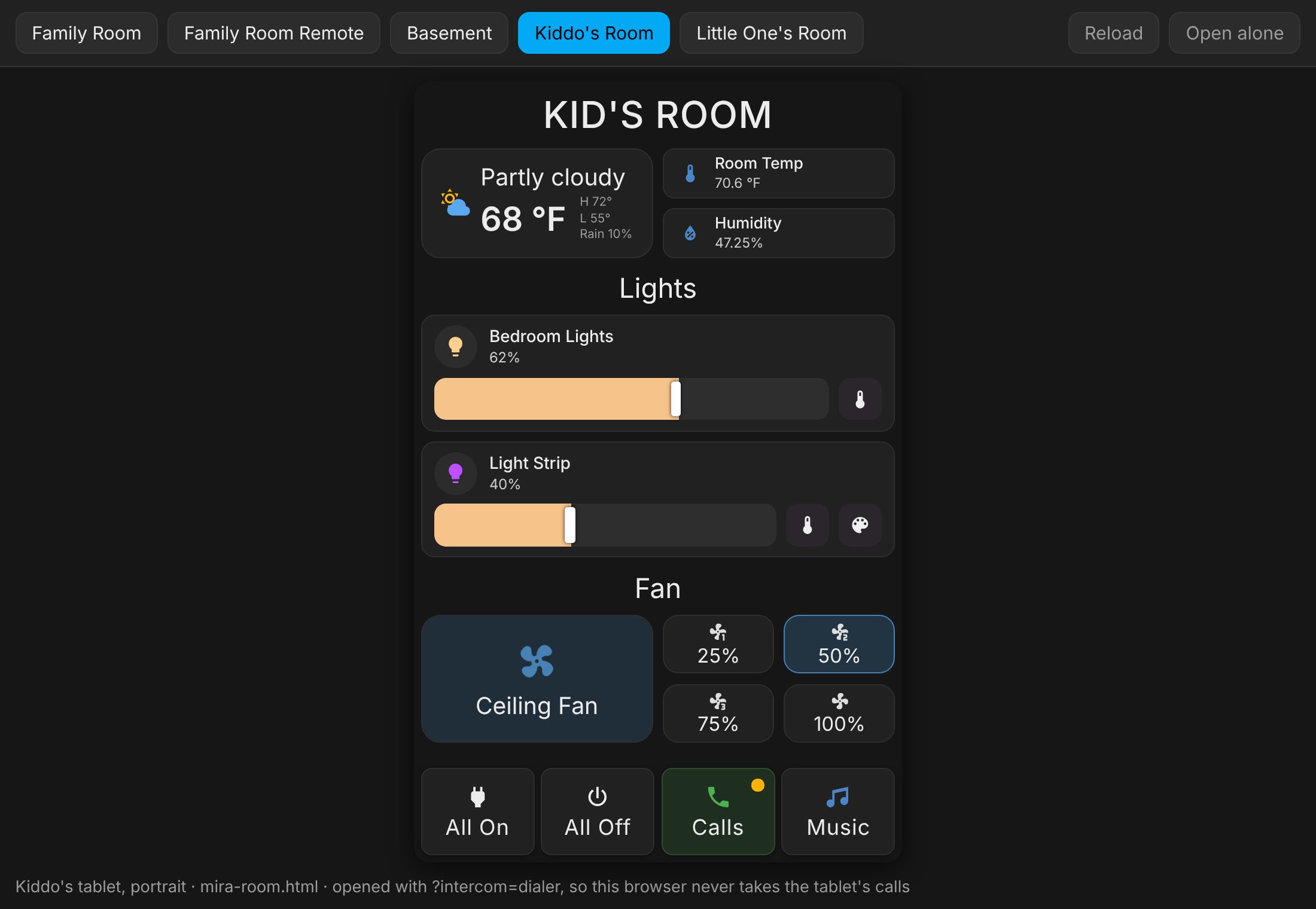 Every tablet's page, live, each in a frame with that tablet's shape. Handy for checking something from the couch.
?intercom=dialer, so I can call out from it but calls keep ringing on the real tablet. And voice never starts inside it, as above. Smaller Things
About Those Screenshots (Again)
How It Went