My Home Assistant Wall Tablets, Part 3: Alerts, Swipes and a Thermostat That Knows About the Attic
Table of Contents
The family room tablet learned to show what matters right now: one banner for everything that needs attention, a swipe to peek at what's hidden, and a thermostat card that also controls the attic AC and the basement heater. Part 3 of 3 in Home Assistant Wall Tablets in Plain HTML. Almost everything that changed on my wall tablets since the last post happened on one of them: the Fire HD 10 in the family room. It's the tablet everyone walks past, so it's the one that has to be right at a glance. The idea behind all of it is simple. A tablet on the wall should show what matters right now, and everything else should be one swipe away. The catch is that it also must never make it easy to do something by accident, like unlocking a door with a stray swipe. Same deal as the last two posts: Claude wrote the code, I lived with it on the real tablet and reported what annoyed me, and every screenshot here is the real dashboard code running against a fake Home Assistant with made-up data. Back in the first post, the row of door locks had one trick: if the garage door was open, the whole row turned into a big red "Garage open, tap to close" button. So that became a general alerts banner in the same spot, filling the same row. There are two colors: With more than one alert at once, the most urgent shows first (red before amber) and a small counter says how many there are: When nothing is wrong, the lock row is exactly what it was before: no dots, nothing to swipe. Each alert is just an entry in a list: a color, an icon, a function that returns the message (or nothing when the alert isn't active), and an optional fix to run when you tap it. The garage one looks like this: The first version alerted for every door: open for 3 minutes, unlocked for 10. The same day, it was obvious that was too much. The front and back doors are in plain view of this tablet, and they're often standing open or unlocked while someone is home. The doors lock themselves anyway, and the lock row already shows their state. So the banner was just noise, and a banner that cries wolf teaches everyone to ignore the red. All of the tuning is a small table, with two flags per door: (The real table also lists each door's sensor and lock. A jammed lock still alerts on any door.) A lot of this tablet works by showing one thing automatically and hiding another that sits in the same spot. That's good until the hidden one is what you want. The spot in the bottom corner is the clearest example. It shows the kids' faces while they're asleep and the alley camera the rest of the time, which meant that at night the car was hidden. I wanted to see the car at night. Now: The spot above it works the same way. It shows a map while someone is away and the calendar otherwise. Now each has a small button in its corner that shows the other for a while: a calendar button above the map's zoom buttons, and a map button next to the calendar's title. It comes back after 2 minutes without a touch, or as soon as someone leaves or comes home. The part I care about most is invisible. On every spot that can be swiped, any drag of more than a short distance no longer counts as a tap when you let go. That means a stray swipe can't lock a door or open the camera. On a touch screen the finger lifting after a drag is the easiest way to press something you didn't mean to, and this closes that door. My house has one central air zone, run by a Nest. It also has a window AC in the attic and a plug-in heater in the basement. The thermostat card only knew about the Nest, so the attic and basement were just two temperatures in a row at the bottom. Now they're part of the card: One detail worth knowing: if you change a setpoint and it hasn't been sent yet when the dial flips back, it still goes to the thermostat it was made on. Adjusting the attic can never change the downstairs by accident. Both are mostly automatic anyway. The attic cools to a set temperature when someone is up there and relaxes when it's empty, and the basement heats while someone is down there and turns off a while after they leave. So the dial is mostly for looking, and for the times you want to override. You can see the alley camera in the corner of the full-page picture above. Its bar names the car the AI sees on the parking pad, and a small badge shows what the charger is doing. (How I trained that model and got it running in CodeProject.AI is in its own post.) The newest thing in that bar is a number: what charging that car has cost this month, out of everything charged this month. Here it is for each of my three cars, on the days each one is in the alley: It only shows a cost once that car has charged this month. Until then, it's just the car's name, like before. This is why it matters that the model can tell my cars apart. Here's the whole chain: None of this needed anyone to do anything new. The car gets plugged in like always, and the meters follow. The fake Home Assistant got a few more tricks for this post. It has a fake clock, so everything reads 8:40 PM, and fake people with made-up names and locations. The map tiles are real OpenStreetMap, with pins dropped in a random spot. The alley pictures are my own snapshots from the parking pad post, with a person blurred out. The charger numbers and costs are invented. The swipes in the screenshots are simulated touches. It's the same events a finger would send, so the real swipe code runs, but it isn't a recording of anyone's hand. The rule I gave Claude in the first post still holds: every way a person already uses the house must keep working, and changes may only add something to learn. Everything here is optional. You can ignore the dots, never swipe, and the tablet still does what it always did. The lock row is still there, one tap under the banner. The change I'm happiest with is the one that removed alerts. A banner that goes off all the time is worse than no banner. If you want the details on any of these cards, let me know in the comments. Thanks for reading. That is the end of the series. Previously: My Home Assistant Wall Tablets, Part 2: Voice, Music and a Smarter Intercom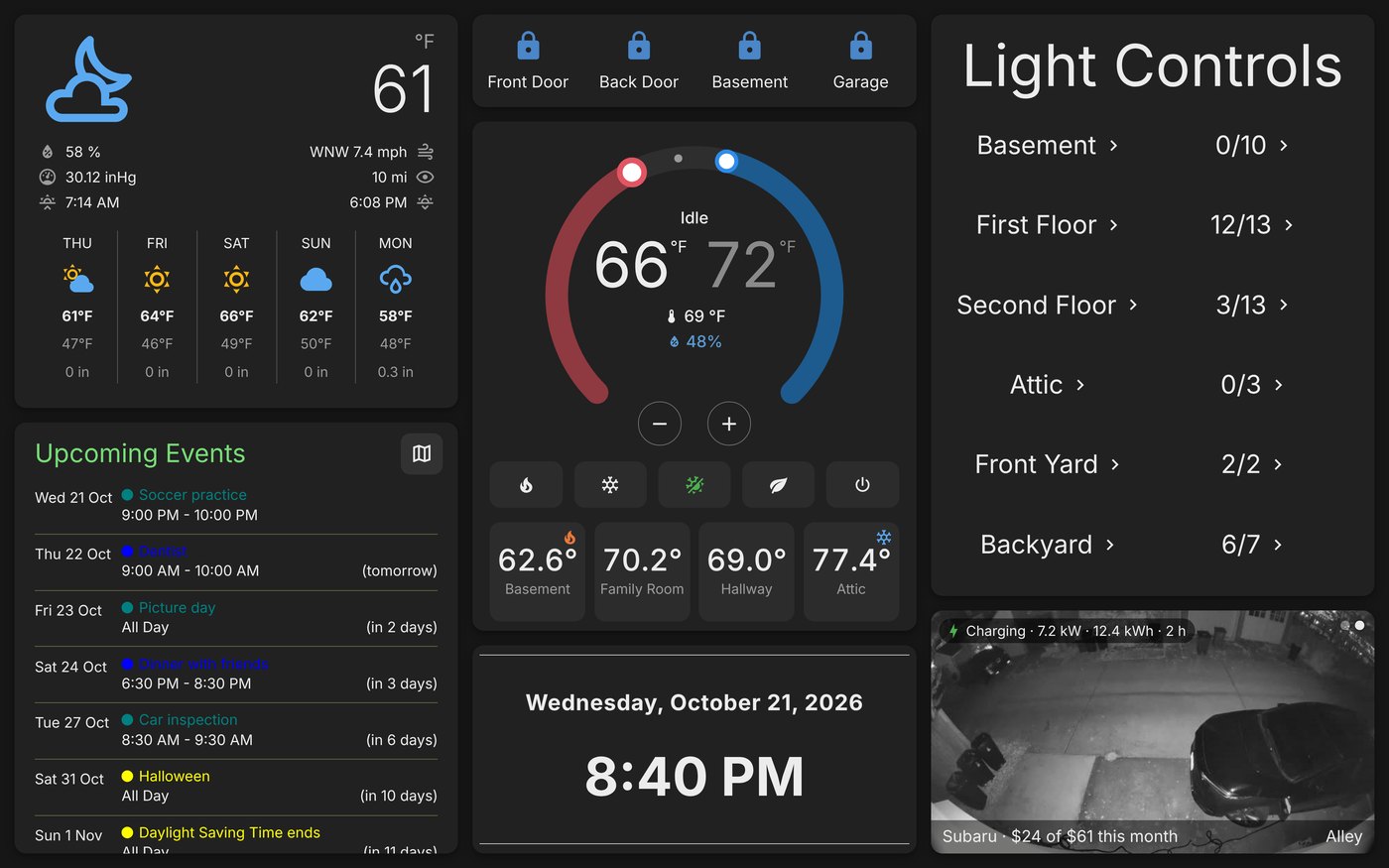 The family room tablet today. Everything on it is made up, and the clock is stuck at 8:40 PM.
 One Banner for Everything That Needs Attention
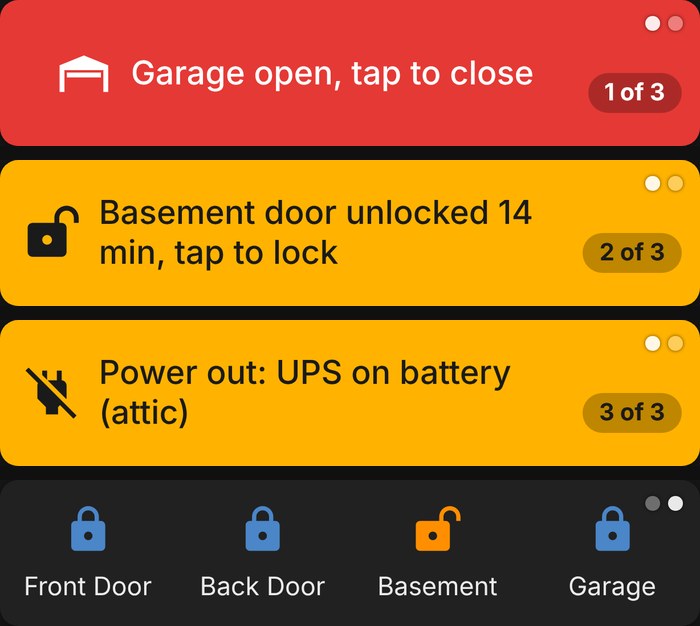 Swipe up for the next alert, down for the previous one. The last picture is the lock row, which is one tap on the dots away.
{ id: 'garage', level: 'red', icon: 'garage-open-variant',
tap: { svc: 'cover.close_cover', e: 'cover.garage_door' },
text: () => (Dash.st('cover.garage_door') === 'open' ? 'Garage open, tap to close' : null) } Taking Alerts Away
const DOORS = [
  { name: 'Front door',    openAlert: false, unlockAlert: false },
  { name: 'Back door',     openAlert: false, unlockAlert: false },
  { name: 'Basement door', openAlert: true,  unlockAlert: true  },
  { name: 'Garage door',   openAlert: false, unlockAlert: true  },
]; Swipe to Peek
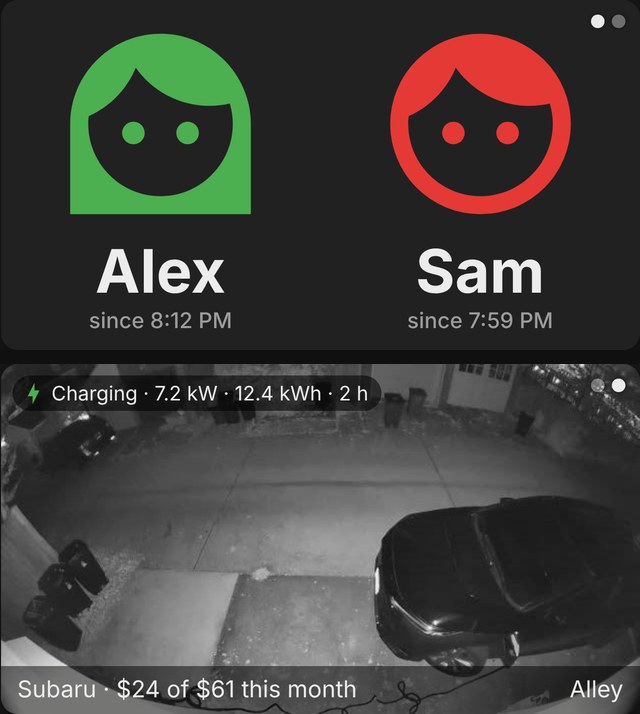 Top: the faces at night. Bottom: a swipe sideways shows the alley camera. (The names are made up.)
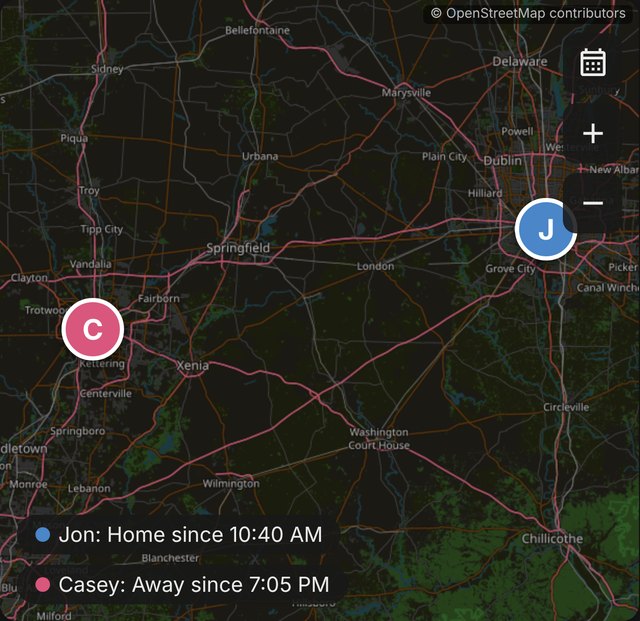 The map, with the calendar button at the top right. The locations are made up, and the map is real OpenStreetMap.
 A Swipe Is Never a Tap
The Thermostat Learned About the Other Two
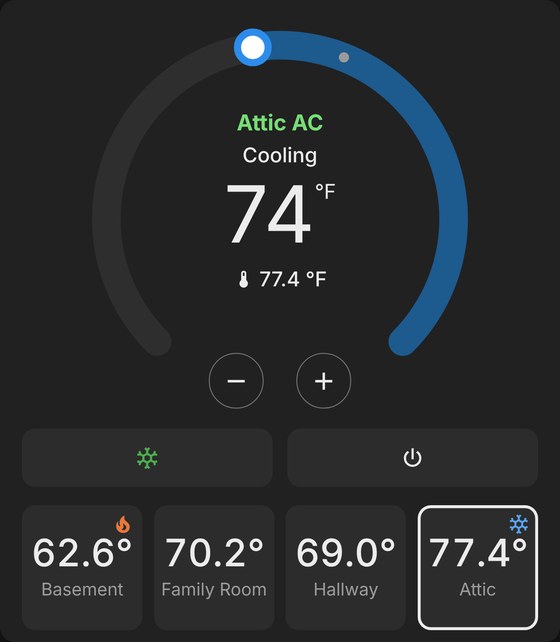 The Attic tile tapped. The flame and snowflake are on the tiles even when the dial shows something else.
 The Alley Card, and What Each Car Costs
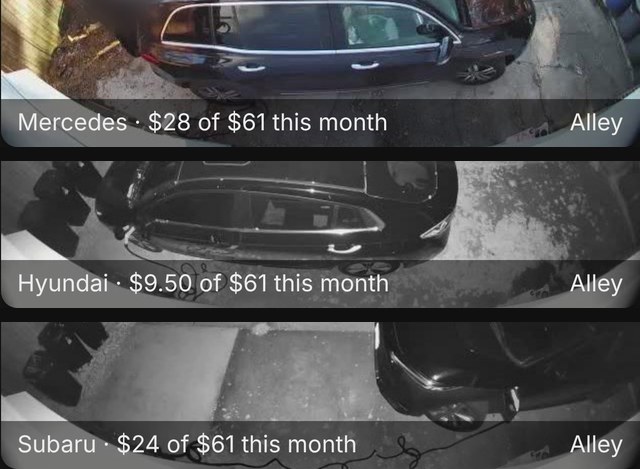 Each car's share of the month. All the numbers are made up. (Under $10 it shows cents.)
 Where the Numbers Come From
Smaller Things
About Those Screenshots (Once More)
How It Went