Is the Parking Spot Free? Training My Own AI to Recognize My Cars
Table of Contents
- Why a Generic Model Wasn't Enough
- Step 1: Collect Pictures
- Step 2: Label Them
- Step 3: Train
- Step 4: Put the Model in CodeProject.AI
- Step 5: Home Assistant Asks the Model
- Step 6: Don't Trust a Single Frame
- Step 7: Tell the Phone
- Step 8: Keep the Camera Honest
- How Well Does It Work?
- What I'd Tell Someone Starting Out
I trained a small YOLOv5 model on photos from my alley camera so Home Assistant can tell my three cars apart, and so my phone can say whether the parking spot behind the house is free before I get home. I live in a row home. There's no driveway in front, just a single parking pad behind the house, off the alley. If a car is already on it, the next one has to find a spot on the street. So the question I ask the most when I'm driving home is: is the spot free? Now my phone answers it before I get there. As I pull up to the house, I get a voice message saying whether parking is available, and a notification with a picture from the alley camera so I can check it myself. I'm not the only one who benefits: everyone else in my house who drives home to that pad gets the same alert on their own phone. In Apple CarPlay the parking pad even shows up as a garage door: open means free, closed means a car is on it. Under it all is a small AI model I trained to recognize my three cars. By my own estimate it's right more than 95% of the time. I run CodeProject.AI in Docker on my home server. It's a free object detection server that runs on your own hardware, and Home Assistant can send it pictures over a simple HTTP call. Out of the box it knows what a "car" is. I started there, using the ready-made That did not go well. My alley camera is a wide-angle view looking down on the pad from above, so the cars aren't seen from the side the way they are in most training photos. The generic model often found nothing at all. It also couldn't do the one thing I actually cared about, which was to tell my cars from anyone else's. I only wanted one question answered: which of my three cars is on the pad, if any? That's three possible answers, from one camera that never moves. (I set all of this up about two years ago, with a lot of help from ChatGPT on the training side.) Two things turned it around: The camera is a Ring camera. To build a training set, I wrote a small Python script and ran it from cron every few minutes. It takes the current snapshot, shrinks it to fit in 640×640 pixels (the size the model trains on), pads it with black bars so the shape isn't distorted, and saves it under the next free number: I used almost the same function once more to standardize the pictures I had already collected by hand: it loops over a whole folder and writes the 640×640 padded copies into another one. I only let it run for a few days, then commented the cron line out. Because the lighting changes slowly and the cars sit still, a few days already covered a lot. One thing I worried about at first was overfitting: a model that has memorized its pictures instead of learning what a car looks like. For a general-purpose model that's a real problem. For mine it turned out to help. The camera never moves, there are only three answers, and the cars park in nearly the same places every time, so a model that knows exactly what these cars look like from this spot is just what I want. It's a very narrow job, and I wouldn't claim the same thing works for a camera that sees strangers' cars. Even so, hundreds of near-identical pictures of one parked car don't teach much. Variety (different light, weather, parking positions, and the empty pad) is what helps. A model learns from examples where a person has drawn a box around each car and said which car it is. I used LabelImg, a free desktop tool: open a picture, drag a box around the car, type its name, next picture. It saves a small text file with each picture in YOLO format (one line per box: the class, then the box's position and size). The first training set was small: I named the files after the car ( Along the way I also tried different framings of the same scene. An early test folder of mine has files like Labeling didn't take long, and that's the nice thing about a fixed camera. Once a car is parked it doesn't move, so a whole run of pictures has the same car in the same place, with only the light and shadows changing. I labeled one picture by hand, then automated copying that box to the rest of the pictures of that parked car. I used YOLOv5, the version CodeProject.AI's detector understands, and started from the small pretrained The training machine is an old laptop (an Intel i7-8750H and a GTX 1060 with 6 GB of memory), so the settings are modest. This was the command: A few of those choices: The dataset file is only a few lines: Look at the second line. The validation folder is the same as the training folder. That means the model was "tested" on pictures it had already studied, so the scores below say how well it learned the training set, not how well it will do on new pictures. I'll come back to this. The first full run stopped on its own after about 5 hours. It found its best result at epoch 69, then went 300 rounds without beating it: (Precision is how often a "Subaru" call was right. Recall is how many of the real Subarus it found.) I should be honest about one thing: I trained several versions along the way and didn't keep good notes. The folder on my server holds a few of them ( The trained model has to go where CodeProject.AI looks for custom ones. Its YOLOv5 detector looks in a Because it runs in Docker, I mount the file into the container in my compose file: After a restart, the model shows up. You can test it from a terminal by sending any picture with The answer comes back as JSON, with a I trained on the GPU, but I run detection on the CPU, and it's fast enough: one picture every 30 seconds is easy work. As far as I remember, the trained weights went in exactly as they came out of training, with no conversion. Home Assistant keeps the server's reply as attributes on the sensor, so you can see the timing for yourself. With an empty pad, mine currently says: That's about a tenth of a second to look at the picture, on a CPU, including the round trip. One small thing that bit me: from inside the Home Assistant container, the AI server's container name would not resolve reliably, so my config uses the Docker network's gateway address instead. That's a private address and could change if the network is recreated. A command-line sensor does the work. It crops the latest snapshot, sends it to the model, and keeps the answer as its state. The crop is a few lines of Python with Pillow. It cuts the bottom two-thirds of the 640×360 snapshot and doubles its size: Writing to I'll be honest again: I'm not sure how much the crop still matters. I found that cropping helped before I had my own model, and I labeled my training pictures as whole frames. The crop stayed in the pipeline because it works, and I never took it out. Sending the uncropped picture to the model and comparing the results would be an easy experiment, but I haven't done it. The sensor refreshes in two ways. One is a slow timer every 5 minutes, as a safety net. The faster way is an automation that runs every time a new snapshot arrives: it saves the picture, waits two seconds for the file to finish writing, then tells the sensor to update. So the answer is usually about 30 seconds old at most. A model answering every 30 seconds will sometimes be wrong for one frame: a headlight glare, a person walking past, a shadow. If a single wrong answer opened the "garage door" in CarPlay, nobody would trust it. So the sensor's answer feeds a second sensor that has to be sure: A final sensor follows that one, and it also turns on if the car charger is plugged in. That's what everything else in the house reads. I don't remember exactly how I picked those two numbers. They work out to roughly one and two snapshots, and they've held up, so I've left them alone. It's slower to say "free" than "taken", which suits this job. This is the part I actually use. The garage door. I made a template cover called "Alley Garage Door" whose state is simply "the pad is free". Home Assistant's HomeKit bridge shows it to Apple Home, and Apple's CarPlay shows garage doors, so the parking pad appears on the car's screen as a door: open means a free spot, closed means taken. Tapping it sends the notification below. Nothing is opened or closed, since there's no door. The notification. A script sends a message to the phones of everyone who uses the pad, mine included: "Parking Behind House is AVAILABLE" or "NOT AVAILABLE", with the latest snapshot attached. The picture matters, because it lets you check the AI at a glance. The script then waits ten minutes before it will run again, so tapping repeatedly can't spam anyone. The voice alert. This is an iPhone Shortcuts automation that runs by itself when my phone arrives home. It runs a shortcut called "Alley Parking" (and another, unrelated one that sends my location): "Alley Parking" only does anything when I'm driving. Everyone who gets these alerts has their own "driving" flag and their own pair of small shortcuts to flip it. Mine is The first thing "Alley Parking" does is read my flag. If it's on, it raises the volume with another small shortcut ("Vol Boost"), asks Home Assistant for the state of the parking pad sensor using the Home Assistant app's Render template action, and speaks the answer: "Alley Parking Is AVAILABLE." or "Alley Parking Is NOT AVAILABLE." If I'm walking up instead, it stays quiet. When it's done talking, it puts the volume back with a second "Vol Boost" and runs another shortcut, "Alley parking is", which asks the Home Assistant app for a snapshot from the alley camera and shows it, attached, in a notification: So by the time I turn into the alley, I've heard the answer and I have a picture to glance at when I stop. The family room tablet (one of the wall tablets I wrote about before) shows the alley camera in a card on its main page. The bar at the bottom names the car the model identified, along with what charging has cost this month, and a small badge shows what the charger is doing. A glance at the wall tells anyone walking by which car is parked there. A detector that's looking at a frozen picture will happily tell you the same wrong answer forever, and the Ring integration did freeze now and then. Every 5 minutes, a tiny Python script compares the latest snapshot to the one from 5 minutes before. If they're pixel-for-pixel identical for about 5 and a half minutes, the camera feed is stuck and Home Assistant restarts the I haven't measured it with a stopwatch and a spreadsheet. But it's been running for a long time, other people in the house depend on it as much as I do, and my honest estimate is that it's right more than 95% of the time. The misses are rare. When it's wrong, it's almost always the same kind of mistake: it says a car is there when the pad is empty. A false "taken" is the safer error, since the notification includes the picture and you can see for yourself, and with other people relying on it, I'd rather it be wrong in the harmless direction. I haven't tracked the exact rate. The scores in the training table above are not an independent test, because the model was checked against the same pictures it learned from. The real test is the one I've been running ever since: living with it. If you build your own, keep some pictures out of training and check against those.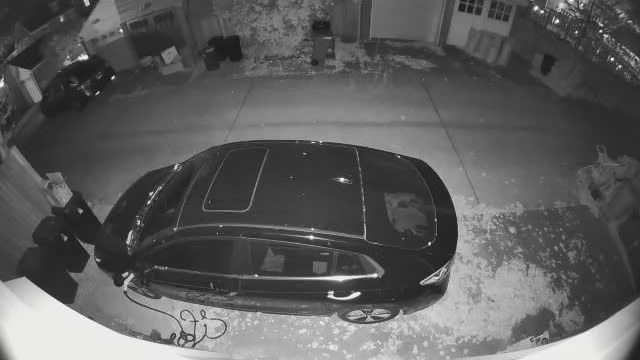 The Hyundai on the pad at night, in infrared. This is the real picture the model works from.
 Why a Generic Model Wasn't Enough
ipcam-combined model that comes with it.hyundai, mercedes and subaru. Step 1: Collect Pictures
ring-mqtt gives Home Assistant a fresh snapshot about every 30 seconds, and an automation saves it over the same file each time. That one file is the input for everything else.0001.jpg, 0002.jpg and so on. That gathers pictures in different light and weather, including night in infrared.from PIL import Image
import os
source_image = "/path/to/www/ring-snapshot/alley-snapshot.jpg"
destination_dir = "/home/me/training-images/"
os.makedirs(destination_dir, exist_ok=True)
target_size = 640
def resize_and_pad(image_path, output_path, size=640):
"""Resize an image to fit within a square with padding, preserving aspect ratio."""
try:
img = Image.open(image_path)
img.thumbnail((size, size), Image.LANCZOS)
padded_img = Image.new("RGB", (size, size), (0, 0, 0))
padded_img.paste(img, ((size - img.width) // 2, (size - img.height) // 2))
padded_img.save(output_path)
print(f"Processed and saved: {output_path}")
except Exception as e:
print(f"Error processing {image_path}: {e}")
def copy_and_save_sequentially():
# Find the highest existing file number and use the next one
existing_files = [f for f in os.listdir(destination_dir) if f.endswith(".jpg")]
if existing_files:
latest_num = max([int(f.split('.')[0]) for f in existing_files])
new_num = latest_num + 1
else:
new_num = 1
new_image_path = os.path.join(destination_dir, f"{new_num:04d}.jpg")
if os.path.exists(source_image):
resize_and_pad(source_image, new_image_path, target_size)
else:
print(f"No image found at {source_image}")
copy_and_save_sequentially()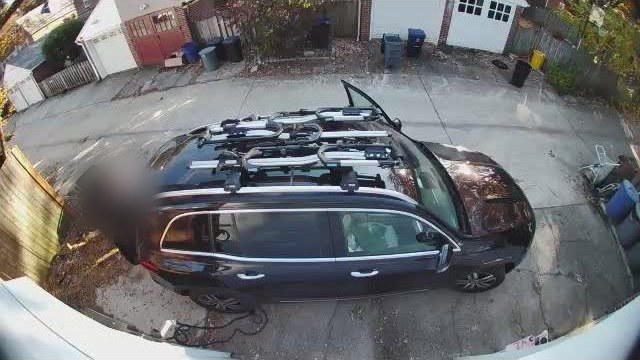 The Mercedes in daylight, with bikes on the roof.
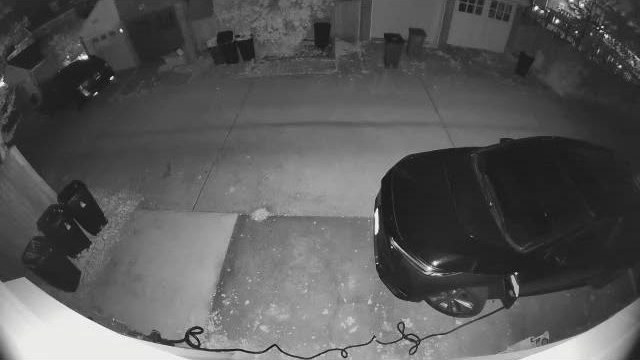 The Subaru parked toward one side at night, charging. It still needs to count as "taken".
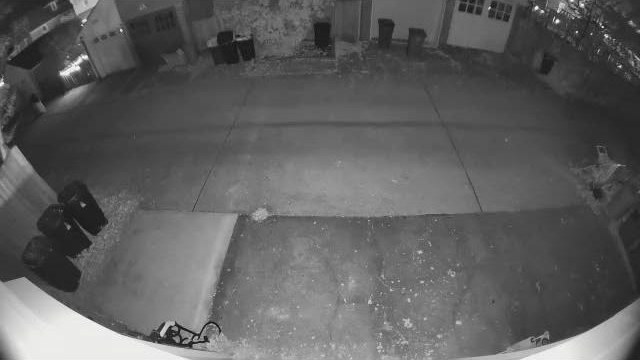 The empty pad at night.
 Step 2: Label Them
Car Pictures Hyundai 77 Mercedes 87 Subaru 98 Total 262 hyundai-0001.jpg) so I could keep track of which was which. LabelImg also keeps a classes.txt, one name per line, and the order is the number each class gets in the label files:hyundai
mercedes
subaruhyundai-full-1.jpg, hyundai-cropped-1.jpg, hyundai-left-1.jpg and hyundai-right-1.jpg: the whole frame, a crop, and the left or right half. I also went back and labeled the images a second time after resizing them to 640×640, because the boxes from the original size were no longer in the right place. Step 3: Train
yolov5s.pt model instead of from scratch. It already knows what edges, wheels and windows look like, so my 262 pictures only have to teach it my cars.python3 train.py \
--img 640 \
--batch 1 \
--epochs 5000 \
--patience 300 \
--data dataset.yaml \
--weights yolov5s.pt \
--cache \
--hyp hyp.scratch-low.yaml \
--device 0--batch 1: all the 6 GB of video memory would allow.--epochs 5000 --patience 300: a ceiling, not a target. Training stops by itself when the score hasn't improved for 300 rounds.hyp.scratch-low.yaml: the settings that control how much training pictures get randomly changed. I turned the changes that don't make sense for a fixed camera down to zero: no flipping, no rotating, no zooming, no mosaic. The camera never moves, so the cars always appear from the same angle, and a flipped car is a view I'll never see.train: /path/to/dataset/images/train
val: /path/to/dataset/images/train
nc: 3
names: ['hyundai', 'mercedes', 'subaru']Precision Recall All cars 0.912 0.910 Hyundai 0.942 0.961 Mercedes 0.938 0.863 Subaru 0.855 0.906 custom-model-276.pt, custom-model-370.pt and so on), and I can't tell you for certain which training run the live model came from. So treat the numbers above as one early run, not a measurement of the model running today. What I can say is that the method is the same, and the live model has done the job well for a long time. Step 4: Put the Model in CodeProject.AI
custom-models folder inside its module. Any .pt file you drop in becomes its own endpoint, named after the file. My file is custom-model.pt, so my endpoint is /v1/vision/custom/custom-model.services:
ai-server:
container_name: codeproject-ai
image: codeproject/ai-server
restart: unless-stopped
ports:
- 32168:32168
volumes:
- ./ai:/etc/codeproject/ai
- ./modules:/app/modules
- ./custom-model.pt:/app/preinstalled-modules/ObjectDetectionYOLOv5-6.2/custom-models/custom-model.ptcurl:curl -s -X POST -F "image=@alley.jpg" -F "min_confidence=0.2" \
http://AI_SERVER_IP:32168/v1/vision/custom/custom-model | jqmessage (like "Found hyundai"), a count, and a list of predictions, each with a label, a confidence and a box.count: 0
predictions: []
inferenceDevice: CPU
inferenceMs: 97
analysisRoundTripMs: 105
success: true
moduleName: Object Detection (YOLOv5 6.2)
command: custom Step 5: Home Assistant Asks the Model
command_line:
  - sensor:
      name: alley_car_detection
      command: >
        python3 /config/crop_image.py /config/www/ring-snapshot/alley-snapshot.jpg |
        curl --silent -X POST -F "image=@-;type=image/jpeg" -F "min_confidence=0.2"
        http://AI_SERVER_IP:32168/v1/vision/custom/custom-model
      value_template: >
        {% set response = value | from_json %}
        {{ response.message if response.message is defined else 'No message' }}
      scan_interval: 300
      json_attributes:
        - count
        - predictions
- inferenceMsimport sys
from PIL import Image
img = Image.open(sys.argv[1])
cropped = img.crop((0, 120, 640, 360))
scaled = cropped.resize((cropped.width * 2, cropped.height * 2), Image.LANCZOS)
scaled.save(sys.stdout.buffer, format="JPEG")stdout lets the whole thing be one pipe straight into curl, with no temporary files.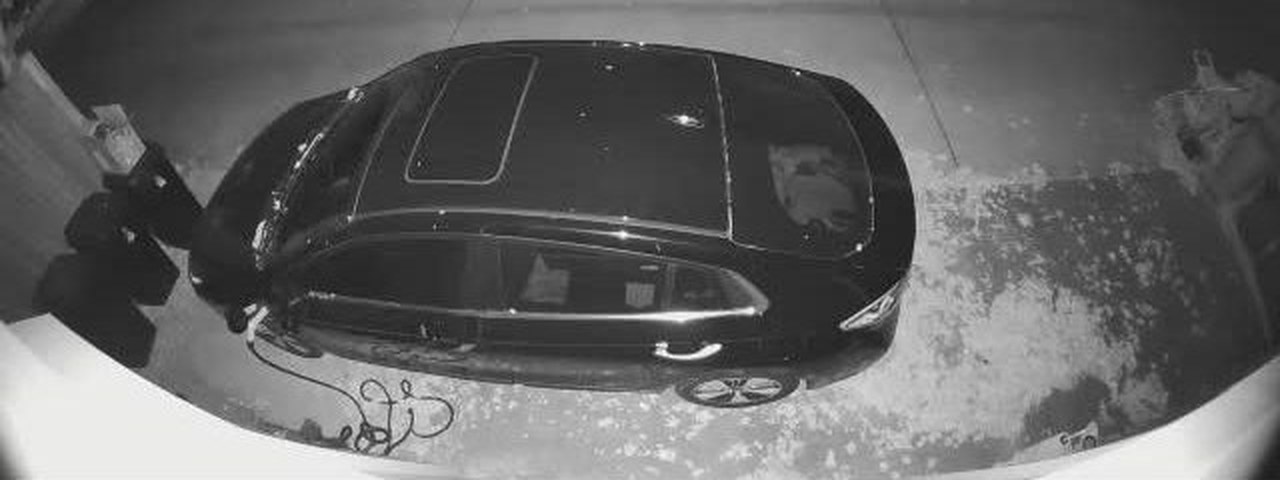 What the model actually receives. The far end of the alley, including the neighbor's car, is cut off, and the car is big.
 Step 6: Don't Trust a Single Frame
template:
  - trigger:
      - trigger: template
        value_template: >-
          {{ 'mercedes' in states('sensor.alley_car_detection')
             or 'hyundai' in states('sensor.alley_car_detection')
             or 'subaru' in states('sensor.alley_car_detection') }}
        for: "00:00:34"
        id: "on"
      - trigger: template
        value_template: >-
          {{ not ('mercedes' in states('sensor.alley_car_detection')
             or 'hyundai' in states('sensor.alley_car_detection')
             or 'subaru' in states('sensor.alley_car_detection')) }}
        for: "00:01:04"
        id: "off"
    binary_sensor:
      - name: alley_car_occupancy
        state: "{{ trigger.id }}"
device_class: occupancy Step 7: Tell the Phone
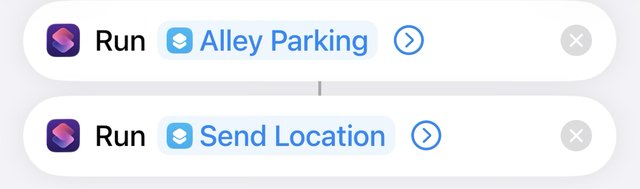 The arrival automation, cropped to its two steps.
jon_driving, with "Jon Driving On" and "Jon Driving Off". Shortcuts automations run them when the phone connects to or disconnects from CarPlay or the car's Bluetooth. "On" checks the flag and, if it isn't already on, sets it and also tells Home Assistant to turn on a matching input boolean (with the Home Assistant app's Perform action). "Off" does the reverse.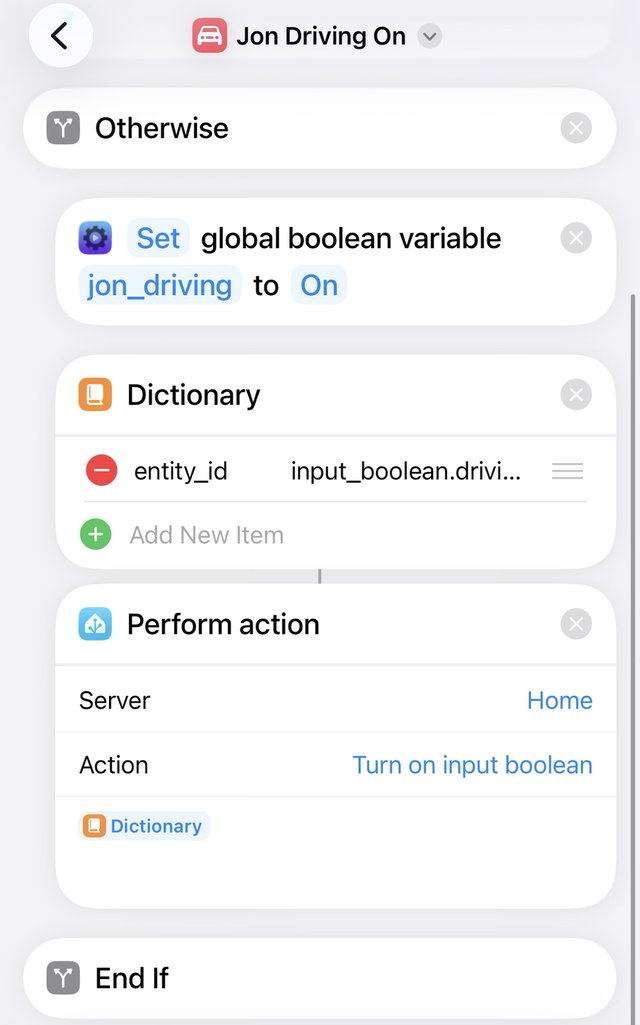 The "Driving On" shortcut. The first steps, not shown, read the flag and check it.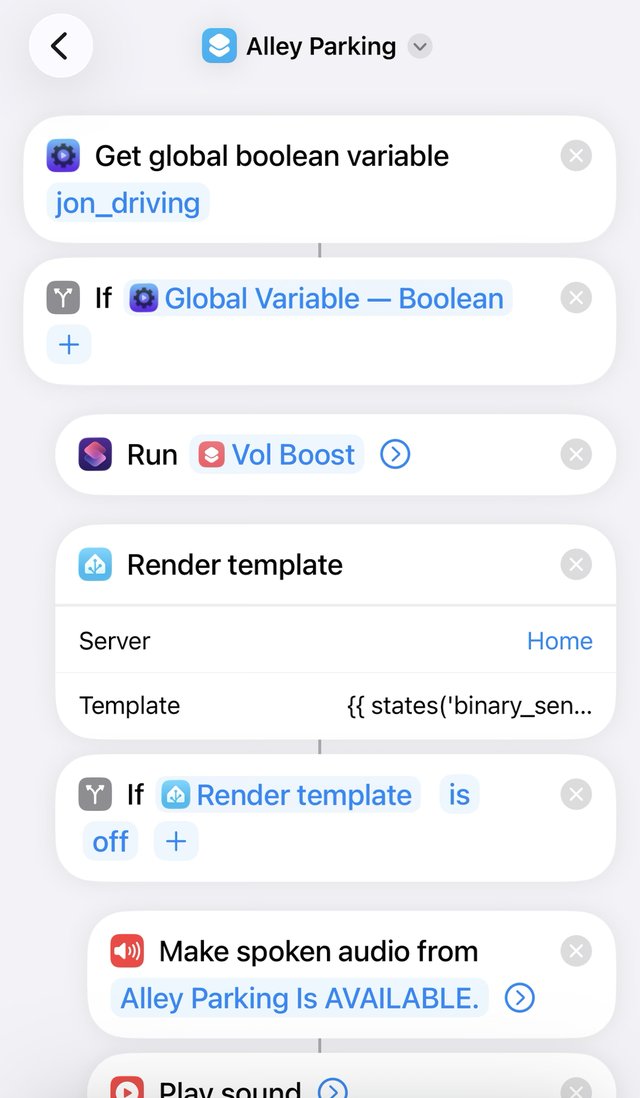
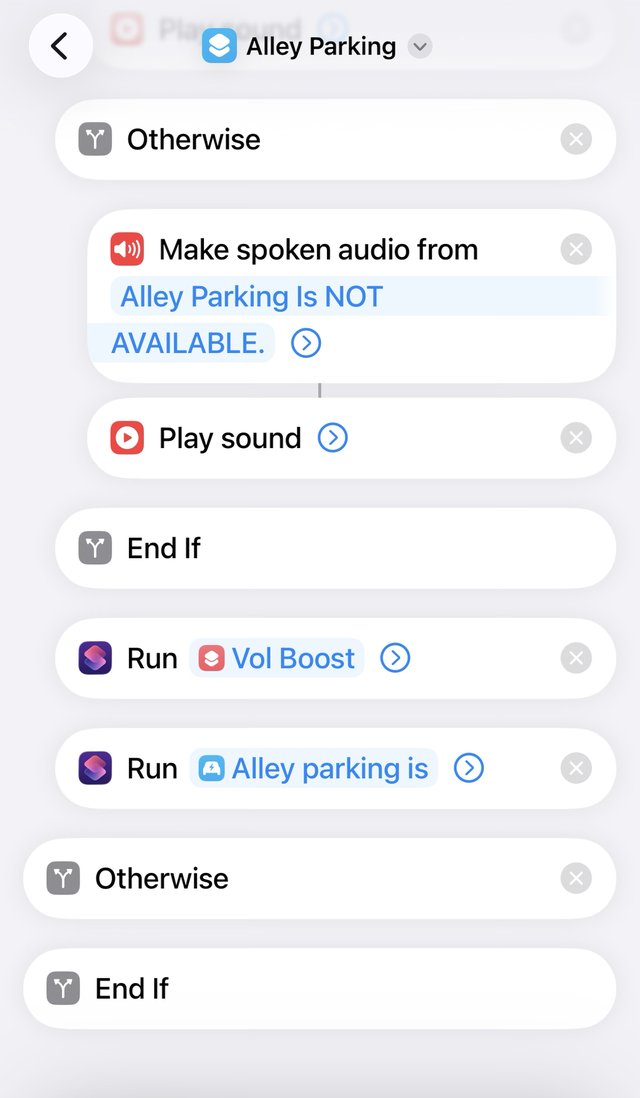
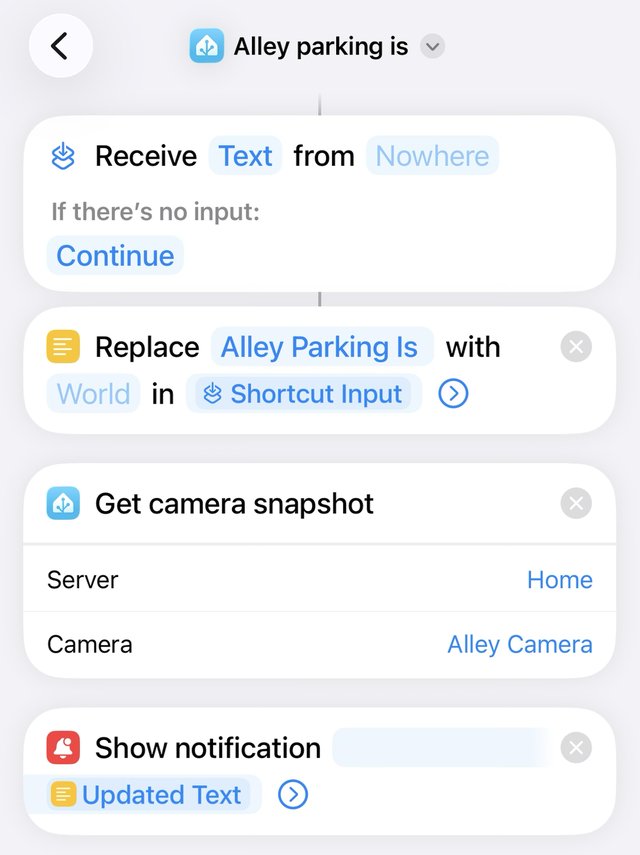
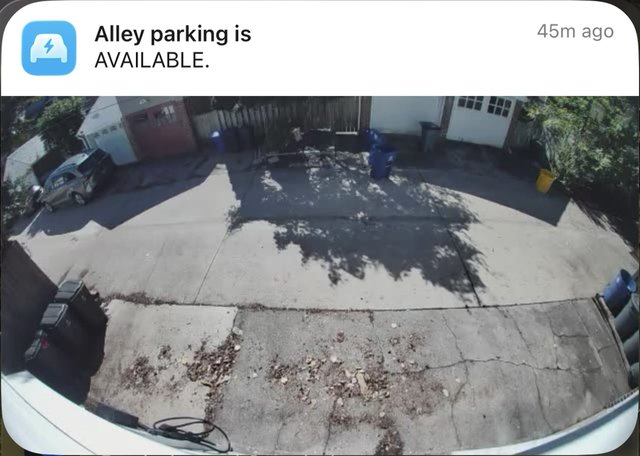 What lands on my phone, and on everyone else's who uses the pad.
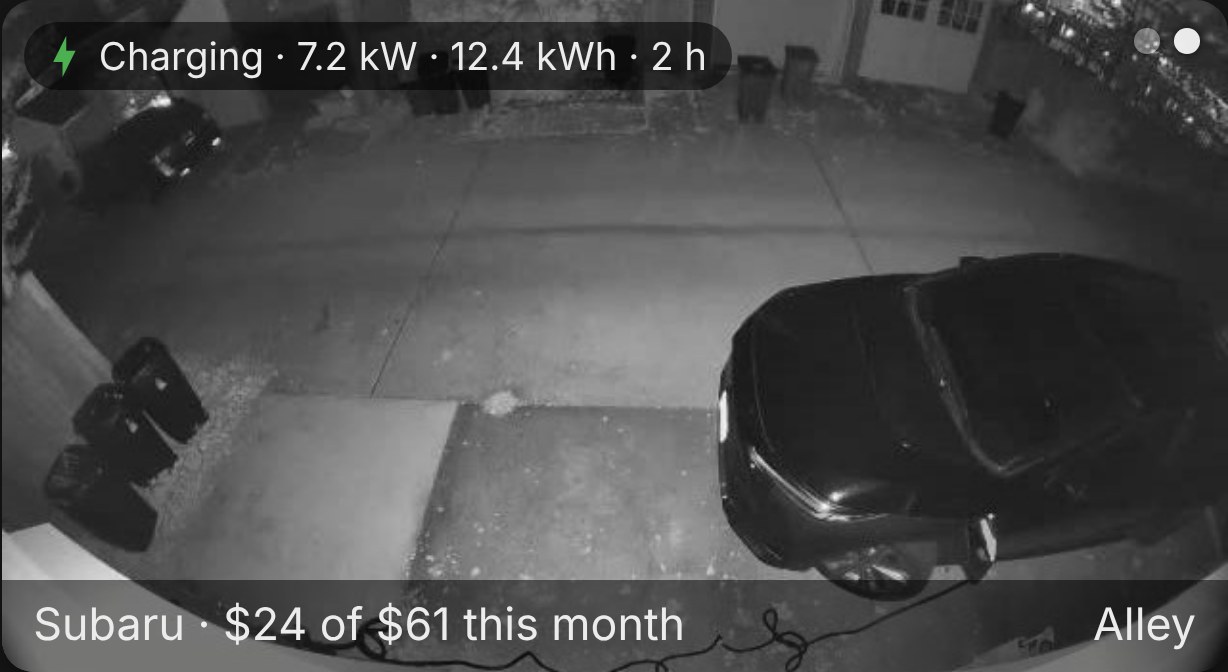 The alley card on the family room tablet. The real dashboard code, but running against a fake Home Assistant: the charging numbers and costs are made up, and the picture is one of the snapshots above.
 Step 8: Keep the Camera Honest
ring-mqtt container to fix it. How Well Does It Work?
What I'd Tell Someone Starting Out