Rewriting My Home Assistant Dashboards in Plain HTML
Table of Contents
The Lovelace dashboards on the wall tablets around my house were slow and kept reloading, so Claude and I replaced them with small HTML and JavaScript pages that talk to Home Assistant over one websocket. Here's what they look like and how they work. Part 1 of 3 in Home Assistant Wall Tablets in Plain HTML. There are tablets on the walls all over my house. A Fire HD 10 in the family room, another one in the basement, a Lenovo StarView next to the TV that works as a remote, and one in each of the kids' rooms. (I've 3D printed mounts for these before.) They are how most of my family actually uses Home Assistant. For years they all ran regular Home Assistant dashboards (Lovelace) in a kiosk browser. And on these tablets, Lovelace was heavy. Every one of them was loading the entire Home Assistant app just to show a few buttons. Taps would hang for a while before anything happened, and the pages kept reloading on their own, usually right when someone was trying to turn off a light. So the dashboards got rewritten as plain HTML and JavaScript. No framework, no build step, no npm. Each tablet loads one small page that talks directly to Home Assistant. And in the spirit of this blog's name, I should be upfront: I didn't write the code for these dashboards. Claude (the AI from Anthropic) basically wrote all of it. I told it what each tablet needed to do, tried every version on the actual tablets, and reported back what was broken or annoying. Then it fixed it. More on how that went at the end. Here's the main one, in the family room: Each box is a "card," and most of them do a little more than they look like they do: The light menu counts the lights that are on per floor (2/4 means two of four). Tap the count and that whole floor turns off. Tap the name and you get the lights on that floor: Here's the part I like: those floor counts come from Home Assistant's areas. I don't keep a list of lights on the dashboard. If I add a new bulb to the kitchen area in Home Assistant, the first-floor count just includes it. Lights hidden in Home Assistant (like the individual bulbs behind a light group) are left out so they aren't counted twice. The portrait tablets all share the same building blocks. Here are the kid's room, the basement, and the family room TV remote: That last one matters. My one hard rule was that nothing my family already knows how to use is allowed to change on them. So each new page started as a copy of the old Lovelace layout, button for button, and only then got cleaned up. Swipe left on any of the portrait tablets (or tap the green Calls button) and you get page two: an intercom. It's a real voice call, right in the browser. Each room's page signs in to an Asterisk server I run, using SIP.js. During the day, calls are answered automatically with a beep (it's an intercom, after all). At night they wait quietly so nobody wakes a sleeping kid. The rooms aren't a hard-coded list either: a small monitor publishes each room to Home Assistant over MQTT, and the page finds them there. Every page is tiny. Here's roughly what one looks like: The files live in Home Assistant's own All the real work is in Each card type is just a function in its own file that returns some HTML. Here's the "faces" card from the family room (the one that shows if the kids are asleep), simplified a little: The family room page, with every script and stylesheet it loads, is about 130 KB across 13 files, and around 42 KB compressed. About a third of that is the icons, which are the Material Design Icons I actually use, built into one file by a little script so the tablets don't download thousands of icons they'll never show. A page needs a Home Assistant long-lived access token. You open it once with the token at the end of the address: The page saves the token in the tablet's browser storage and immediately removes it from the address bar, so it doesn't end up in history or a screenshot. After that it just works. If you build something like this yourself, make a separate, non-admin Home Assistant user just for the tablets and use that user's token. A tablet on a wall is the easiest thing in the house to walk off with. Getting a dashboard to show up is easy. Getting it to keep working on a tablet that sits on a wall for months, through Wi-Fi drops, power cuts and Home Assistant restarts, is the hard part. A lot of the work with Claude went into exactly that, and each fix came from something that actually happened: There's also a screensaver: after a minute or two of no touches, the tablet shows a photo slideshow from my self-hosted Immich, and wakes back to the controls on the first tap. It's never allowed to kick in during a call. Every screenshot in this post came from the real dashboard code, but not from my real house. I didn't want to post my actual calendar, door states, or kids' names on the internet. So Claude wrote a small fake Home Assistant: a script that loads each page in a headless browser and answers the page's websocket messages with made-up data (a partly cloudy 68°, a back door that's unlocked, soccer practice at 5:30). That fake turned out to be useful for more than blog posts. Most of the fixes above were tested exactly that way: a stand-in Home Assistant, and a stand-in intercom that fails to load twice before it works, to check that the page recovers on its own. I'm not a web developer. I can read JavaScript well enough to follow along, but about 3,500 lines of it, plus an in-browser intercom, was never going to come out of me. The dashboards live in their own Git repo on GitHub, and Claude worked on them the same way every time: it worked on a branch, explained what it changed and how it tested it, and I merged it and copied the folder into Home Assistant's That last part was my real job. Claude can test a page in a headless browser all day, but it can't tell that a button is too small for a kid's finger, or that the intercom stops working after the power goes out at 3 AM. Most of the fixes in the section above started with me saying "this thing did something weird," and Claude figuring out why. For us, yes. Taps respond right away, the random reloads are gone, the tablets come back on their own after the power goes out, and every page shows exactly what that room needs and nothing else. And because each page is just a short HTML file, changing a button is a one-line edit, not a trip through the dashboard editor on a tablet. Would I tell everyone to do this? Probably not. Lovelace is still the right answer for most people, especially on a decent tablet or a phone, and it doesn't need any code. But if you have some older tablets on your walls that hang and reload like mine did, a page that only knows about the twenty entities it shows is a surprisingly small amount of code. Let me know in the comments if you'd like me to go deeper on any of these cards, or the intercom. Thanks for reading. Next in this series: My Home Assistant Wall Tablets, Part 2: Voice, Music and a Smarter Intercom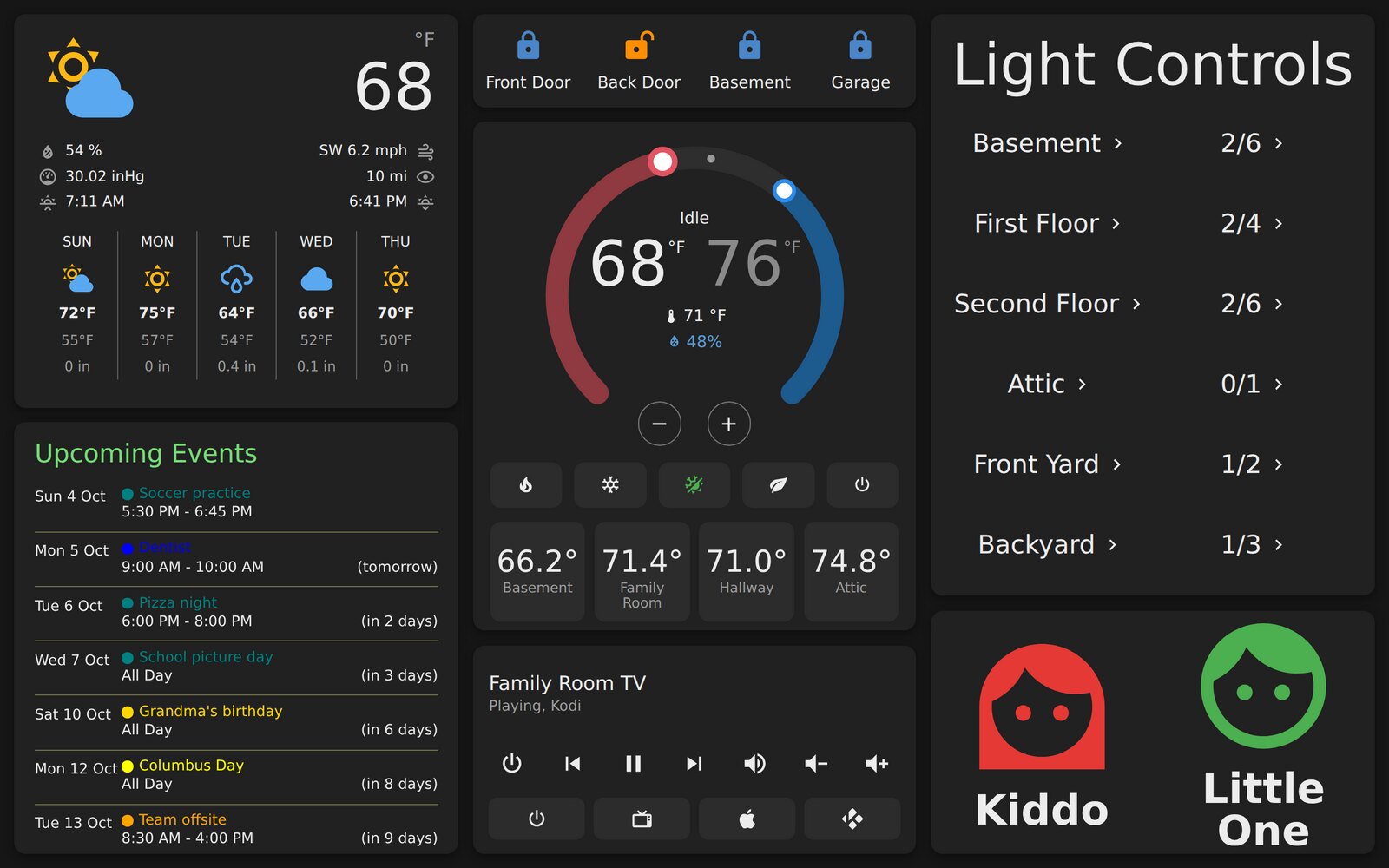 The family room Fire HD 10. All of the data here is fake, from a mock Home Assistant (more on that at the end).
 What's on the Screen
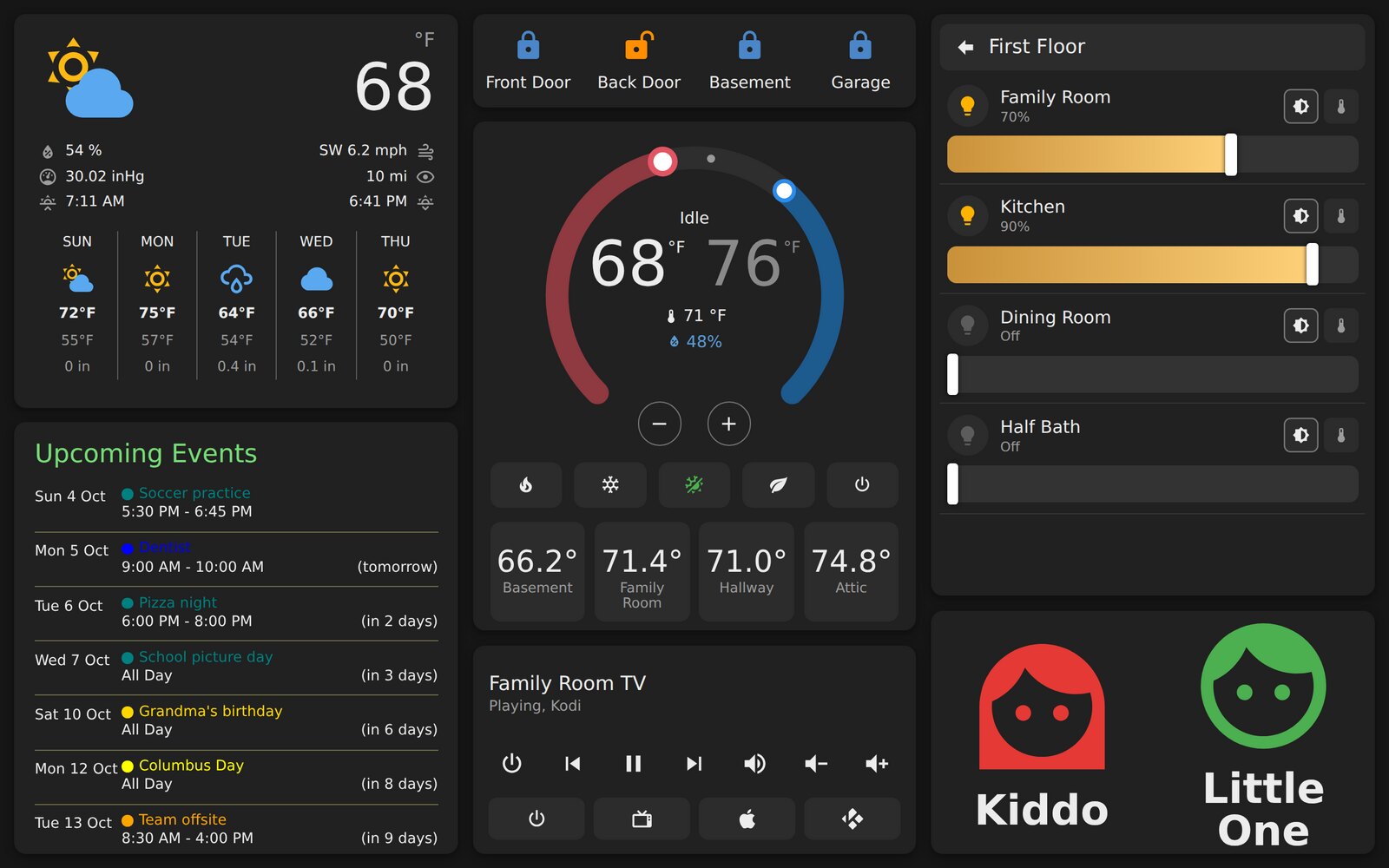 Tapping "First Floor" opens a slider for each room. It goes back to the floor list on its own after two minutes.
 The Other Tablets
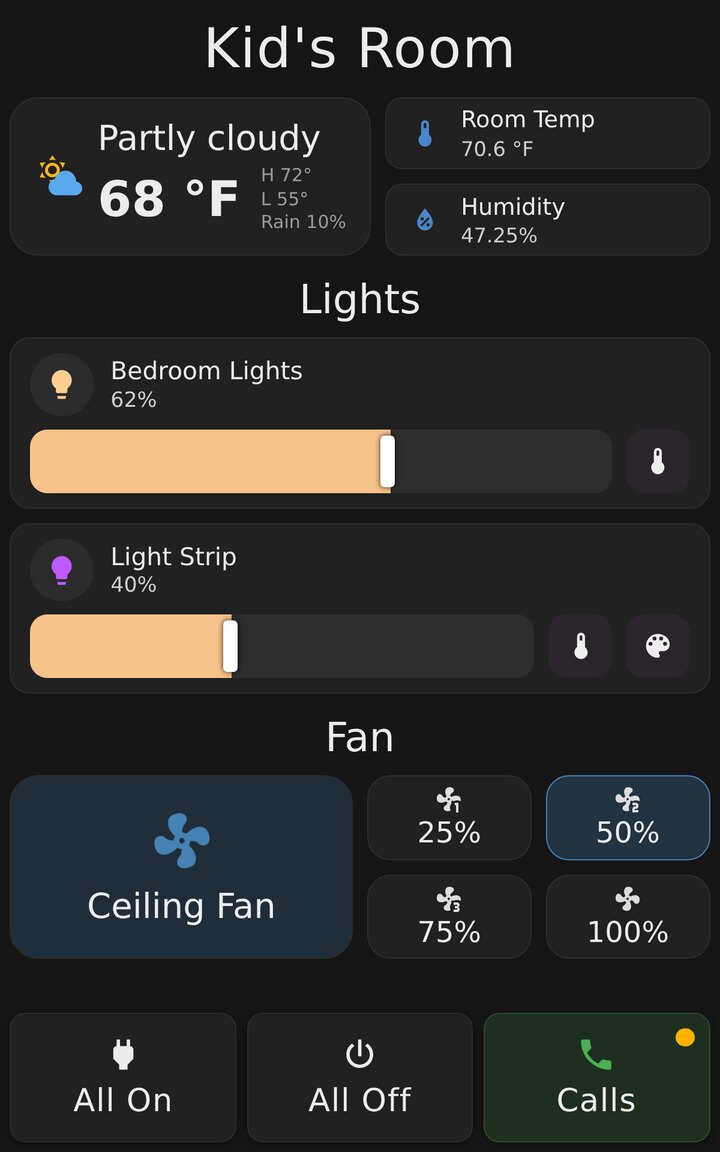 A kid's room. Big buttons, nothing that can break anything important.
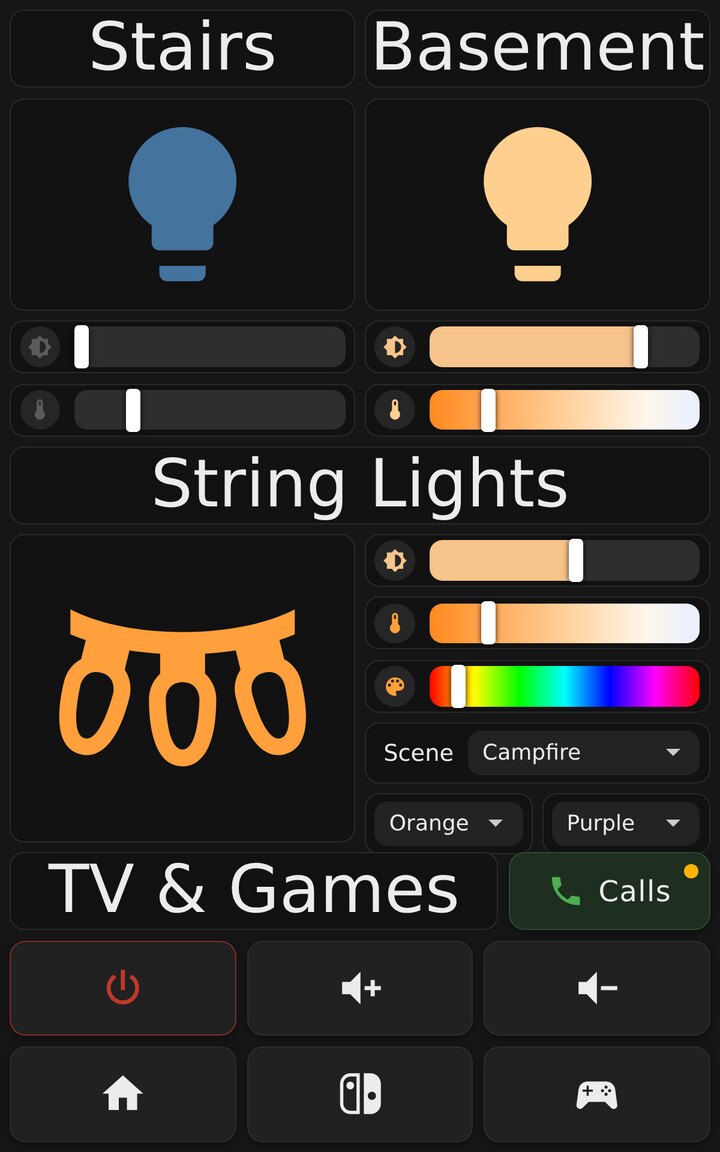 The basement. Same layout as the old Lovelace version, so nobody had to relearn it.
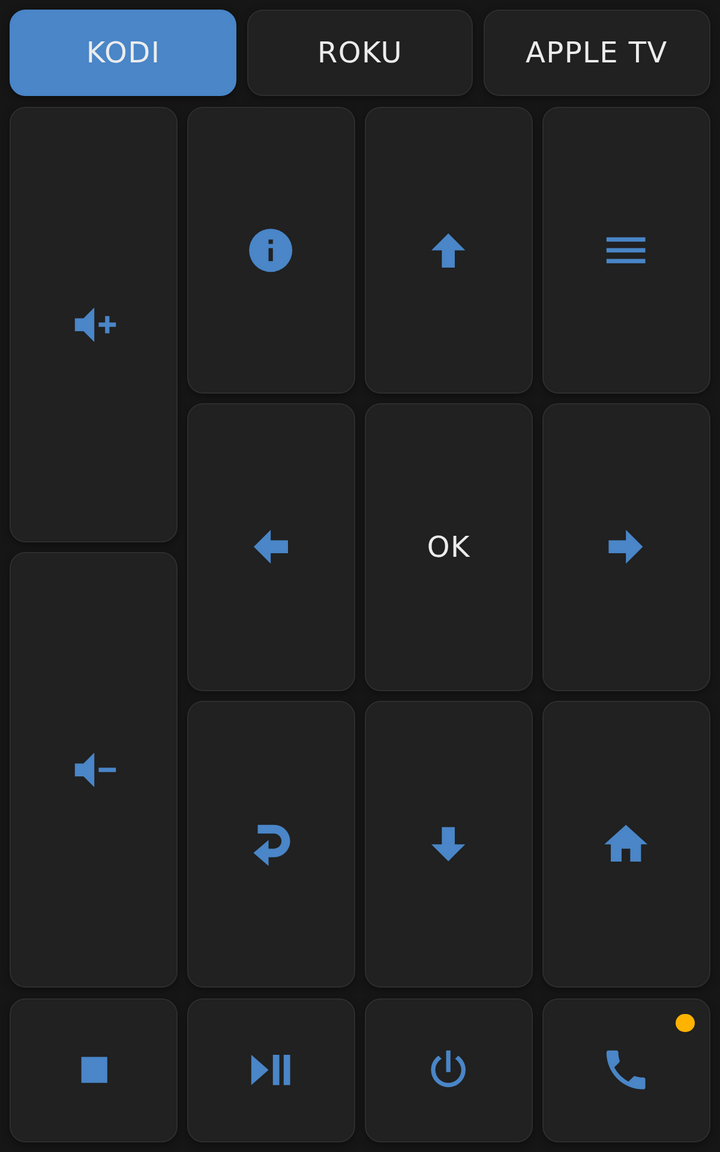 The StarView next to the TV is just a remote. The active source is highlighted.
 A Whole-House Intercom
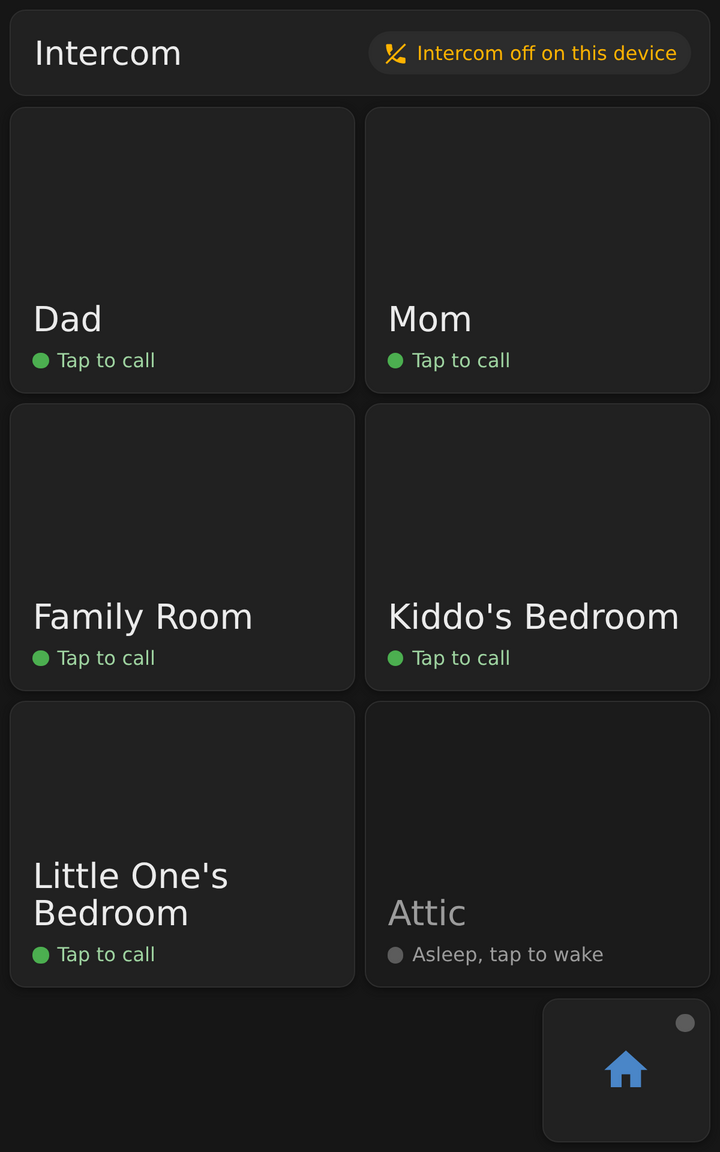 Rooms show up on their own. A tablet that's asleep can be woken up from here.
 How It Works
<link rel="stylesheet" href="lib/theme.css?v=20261002-3">
<main class="dash">
  <div class="card" id="weather"></div>
  <div class="card" id="doors"></div>
</main>

<script src="lib/icons.js?v=20261002-3"></script>
<script src="lib/core.js?v=20261002-3"></script>
<script src="lib/cards/weather.js?v=20261002-3"></script>
<script src="lib/cards/locks.js?v=20261002-3"></script>
<script>
Dash.card('#weather', 'weather', { entity: 'weather.home' });
Dash.card('#doors', 'locks', {
  locks: [
    { name: 'Front Door', lock: 'lock.front_door' },
    { name: 'Back Door',  lock: 'lock.back_door' },
  ],
});
Dash.start({ haUrl: '' });   // blank = the Home Assistant that served this page
</script>www folder, so Home Assistant serves them at /local/dashboard/<page>.html. There's no extra web server to run.core.js, which is about 400 lines: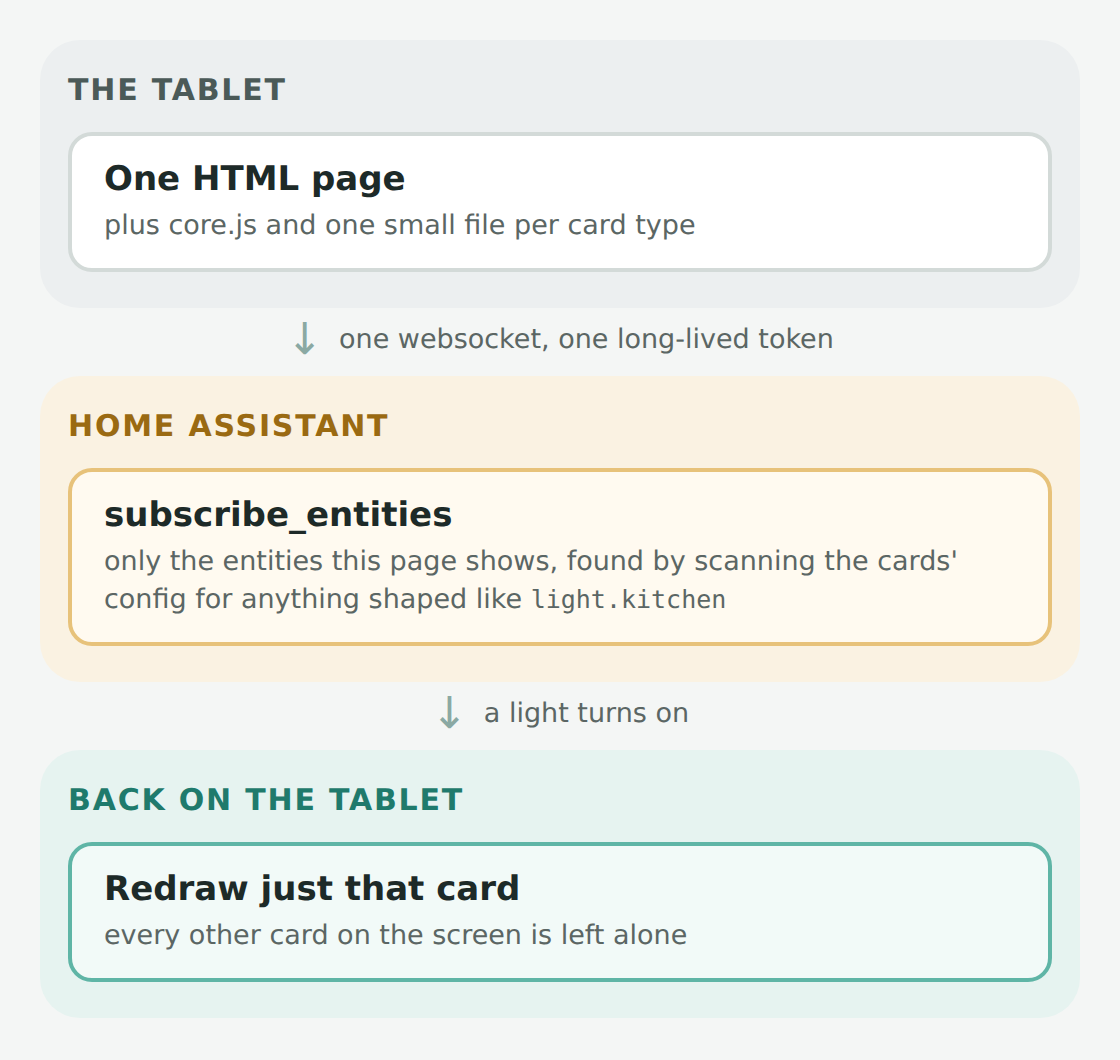 No polling, no refresh timer. The tablet just waits for Home Assistant to tell it something changed.
light.kitchen, lock.front_door...) and subscribes to only those. The tablet never hears about the other few thousand entities in my house.D.types.faces = function (el, cfg) {
const list = cfg.list || [];
return {
deps: () => list.flatMap(k => [k.machine, k.green]).filter(Boolean),
render() {
return `<div class="faces">` + list.map(k => {
const m = st(k.machine), color = m === 'on' ? (st(k.green) === 'on' ? 'var(--green)' : 'var(--red)') : '#e0e0e0';
return `<button class="face" data-hold="toggle" data-e="${k.machine}" style="color:${color}">${I(k.icon)} ${esc(k.name)}</button>`;
}).join('') + '</div>';
},
};
};deps() says which entities should trigger a redraw, render() returns the HTML, and data-hold="toggle" is all it takes to make a long-press toggle the sound machine. That's basically the whole card. How Small Is It?
Logging In
https://<your-home-assistant>/local/dashboard/basement.html#token=eyJ... The Boring Stuff That Makes It Reliable
/local/ for 31 days. So after I changed core.js, a tablet could keep running the old one for a month. Every page loads its scripts with a version stamp (the ?v=20261002-3 above), and a little script updates the stamp on every page at once after a change:node tools/bump-version.js # re-stamp every page after editing lib/
node tools/bump-version.js --check # just report if any page is out of date?intercom=dialer to the address lets a PC make calls without ever taking them, and ?intercom=off turns the intercom off completely. About Those Screenshots
Letting Claude Write It
www folder. Then I went and poked at the actual tablets. Was It Worth It?